Master SKU map
An employee must be assigned to the shop with a Shop Owner Admin role to perform actions referred to in this article.
Some retailers list one physical product on Virtualstock as several products - one per colour or variant - while you manage stock for just one product in ShopCtrl. The master SKU map links them: one ShopCtrl master product drives all of its variants on Virtualstock.
The master SKU map is not active by default. Contact ShopCtrl support to enable it for your shop. Without it, each Virtualstock product is linked to the ShopCtrl product with the same supplier SKU, as described in Step 4.
Master, variants and colour codes
A variant's supplier SKU is the master SKU followed by a separator and a colour code:
| ShopCtrl | Virtualstock | Colour code |
|---|---|---|
Master product LMP-2048 | LMP-2048 WH | WH |
LMP-2048 BK | BK | |
LMP-2048 GY | GY |
- Master SKU - the code of the product in ShopCtrl. Stock is managed here.
- Variant SKU - the supplier SKU of one Virtualstock product. It is read from the Supplier SKU field set in Step 2, and it contains the master SKU.
- Colour code - the rest of the variant SKU after the separator. Despite the name, it can stand for any variant: a colour, a finish or a size.
- Separator - the character between the master SKU and the colour code: a space, a dash or a character of your choice.
How it works
Stock export: one master, all variants

When the master's stock or lead time changes, ShopCtrl sends the same values to every variant in the map.
If your own system (for example, an ERP or warehouse system) sends stock to ShopCtrl through the ShopCtrl API, update only the master product - LMP-2048 in the example. ShopCtrl passes that stock on to all of its variants on Virtualstock. The variants do not need to exist in your own system.
Order import: variant back to master

Virtualstock sends an order for a variant SKU. ShopCtrl finds the master in the map and books the order row on the master product. The colour code is kept on the order row as the Colour code property, so you know which variant to ship.
When ShopCtrl exports the order to your own system, the order row contains the master product - LMP-2048 - with the Colour code property - BK. Use the colour code to pick and ship the right variant.
How variants are matched to a master
A supplier SKU belongs to a master when it:
- is exactly the master SKU, or
- starts with the master SKU followed by one of the enabled separators.
When several masters match, the longest one wins. For example, with masters LMP-2048 and LMP-2048 XL, the SKU LMP-2048 XL WH belongs to LMP-2048 XL, not to LMP-2048.
Each variant belongs to one master only.
Setting up the master SKU map
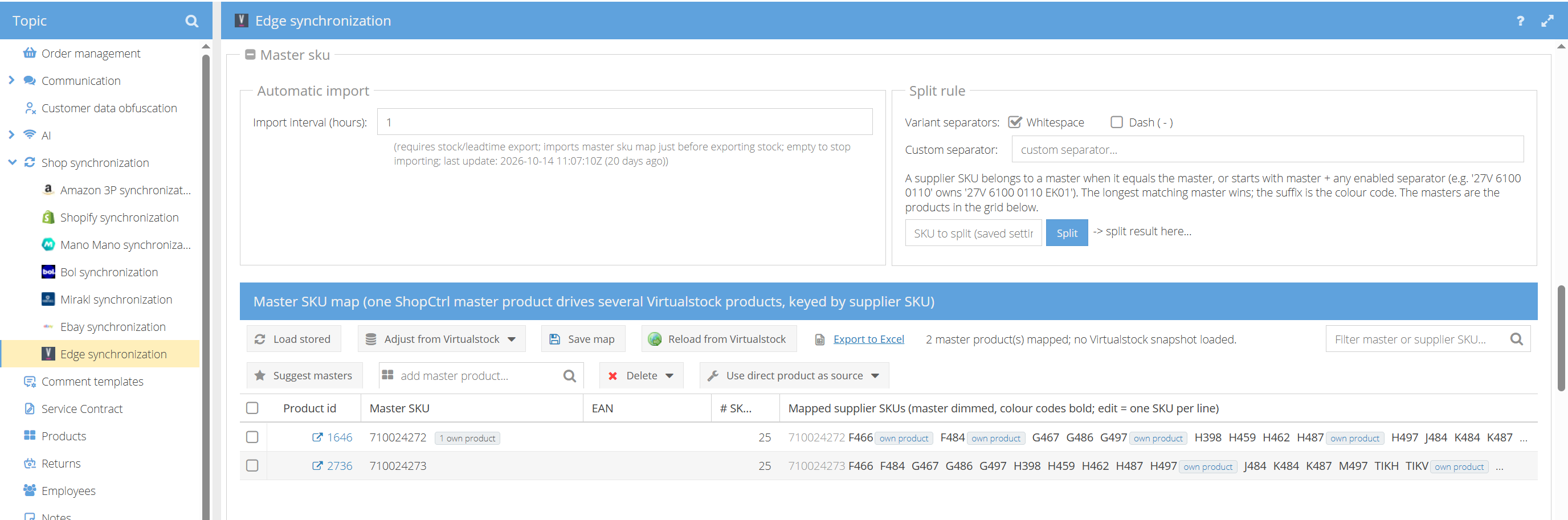
The map is in Configuration > Shops > your Virtualstock shop > Edit > Shop Synchronization > Edge Synchronization, in the Master sku section. The section is collapsed by default - expand it to see the settings and the product mappings.
1. Choose the separators
In the Split rule section, under Variant separators, tick the characters used between the master SKU and the colour code in your supplier SKUs: Whitespace, Dash ( - ), or a Custom separator. Several can be on at the same time. Whitespace is on by default.
To check the result, type a supplier SKU in the SKU to split field and click Split. The test uses the saved settings, so save first after changing a separator.
2. Add masters
- Click Suggest masters. ShopCtrl scans the Virtualstock supplier SKUs and lists existing ShopCtrl products that could become masters, with the number of supplier SKUs each one would own and a sample of them.
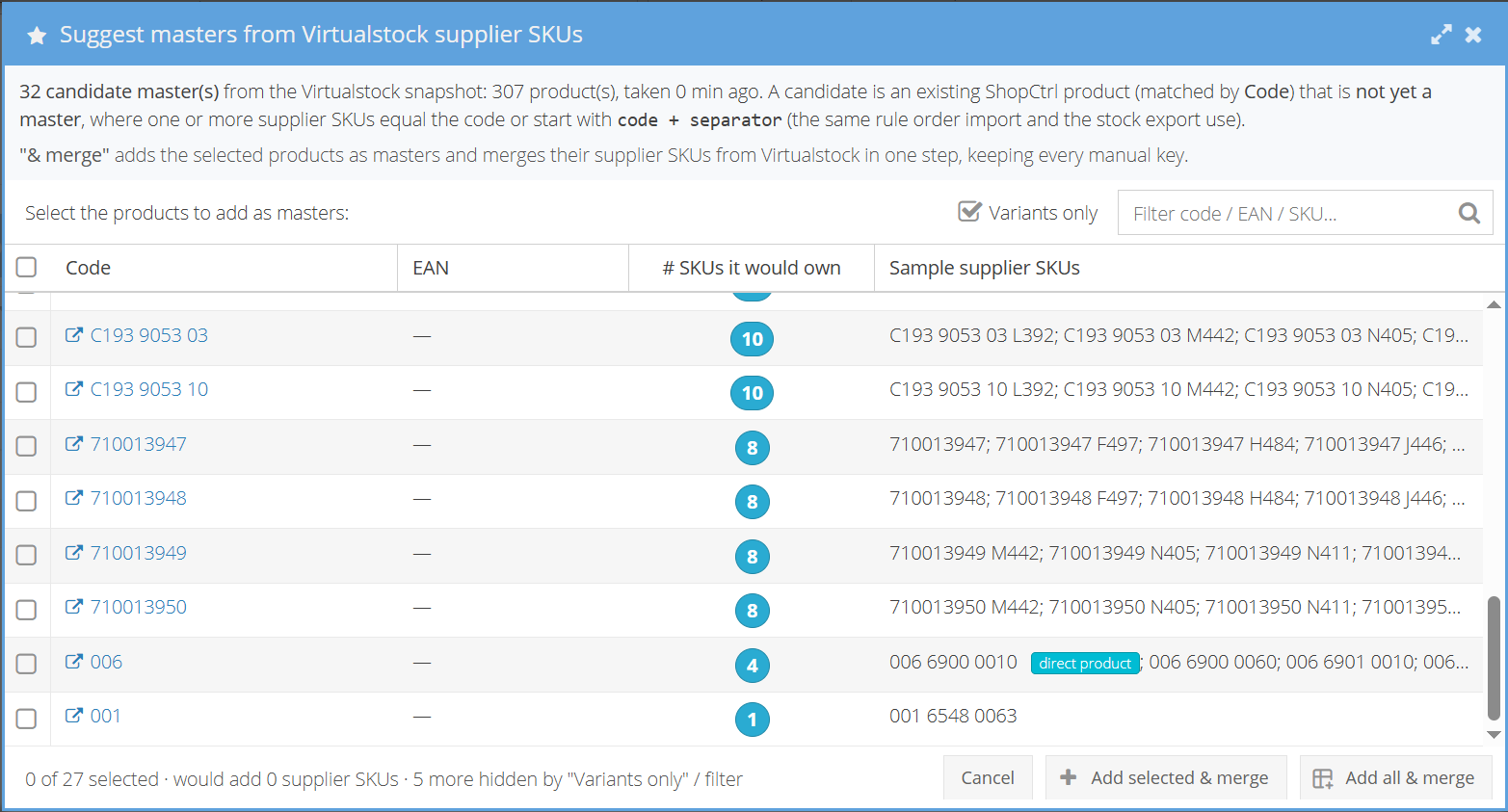
- Review the list. Suggestions are not in the map yet. Variants only is ticked by default and hides products that have no variants on Virtualstock.
- Click Add selected & merge or Add all & merge. The products are added as masters, and their supplier SKUs are merged from Virtualstock in the same step.
You can also add a master by hand: type the product code in the add master product field.
3. Review and save
- Click Load stored to show the current map.
- Review the grid. It shows one row per master, with its mapped supplier SKUs - the master's own code dimmed, the colour codes in bold. To change the variants of a master, edit the list: one SKU per line.
- Click Save map.
You can also export the grid to Excel, or remove masters with Delete selected or Delete all (clear map). Deletions are applied when you click Save map.
4. Load new variants from Virtualstock
When new variants appear on Virtualstock, click Adjust from Virtualstock and choose:
- Merge new supplier SKUs - adds new variants to the masters and keeps everything already in the map, including your manual edits. Use this in day-to-day work.
- Rebuild (replaces manual edits) - replaces the whole map with what Virtualstock sends now. Manual edits are lost.
When a merge adds variants to a master, ShopCtrl marks that master for stock export, so the new variants receive its stock on the next export run.
Automatic import
Set Import interval (hours) under Automatic import to keep the map up to date without clicking Adjust from Virtualstock. ShopCtrl then merges new supplier SKUs from Virtualstock just before exporting stock, at most once per interval. Leave it empty to merge by hand only.
The automatic import always merges: your manual edits are kept. Rebuild only happens when you choose it yourself.
The automatic import only adds new variants to masters that are already in the map. It does not add new masters. To add masters, use Suggest masters or add them by hand - see step 2.
Problems and fixes
A master or supplier SKU in the grid may show a tag when something needs attention. Click the tag to apply the fix.
| Tag | Problem | Fix |
|---|---|---|
| not on Virtualstock | The supplier SKU is not in the current Virtualstock catalogue. Shown after you click Reload from Virtualstock. | Click to remove the SKU from the master. |
| own product | The supplier SKU is also a ShopCtrl product of its own. By default the master drives it, and that product's own stock export is skipped. | Click to make that product the source instead. Use direct product as source does the same for all such SKUs at once. |
| standalone | A variant was made into its own master, so it no longer follows its base master. | Click to fold it back under the base master. |
| no REST id | ShopCtrl does not know the Virtualstock id of this SKU yet, so the stock export skips it. | Run Adjust from Virtualstock > Merge new supplier SKUs, or wait for the next automatic import. |
| ⚠ missing product | The master product no longer exists in ShopCtrl. | Click to delete the row. |
Reload from Virtualstock fetches the Virtualstock catalogue so the grid can show which SKUs are not on Virtualstock. It does not change the map, and the catalogue is kept for 5 minutes.