Step 1. Connect to Virtualstock
Required Permissions
An employee must be assigned to the shop with a Shop Owner Admin role to perform actions referred to in this article.
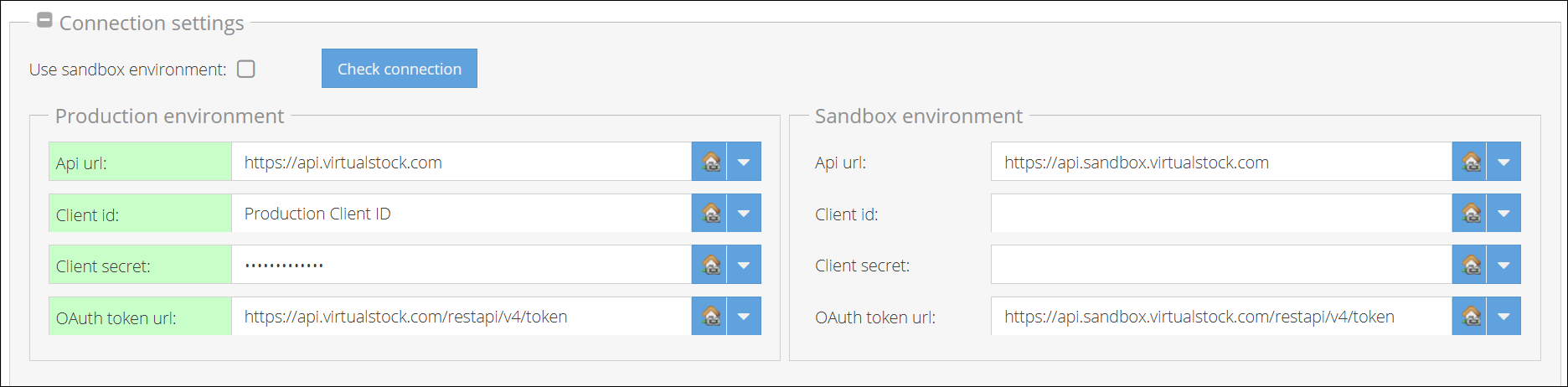
The connection process is the same for both sandbox and production - only the "Use sandbox environment" checkbox determines the target environment.
- Log in to your ShopCtrl account as a user with the Shop Owner Admin role.
- Navigate to Configuration > Shops.
- Select the desired shop and click Edit to open the shop settings.
- From the topic menu, go to Shop Synchronization > Edge Synchronization.
- Scroll down the setings to the Connection Settings section. Make sure the 'Use sandbox environment' checkbox is not activated.
- In the Connection Settings:
- Enter your:
- Client ID
- Client Secret
- Verify default URLs:
- API URL:
https://api.virtualstock.com - OAuth Token URL:
https://api.virtualstock.com/restapi/v4/token
- API URL:
- Enter your:
- Click Save or Save and Close to apply changes to the shop.
- Click Connect to validate credentials.