Step 2. Configure retailer product field names
An employee must be assigned to the shop with a Shop Owner Admin role to perform actions referred to in this article.
Virtual Stock does not use the same product structure for every retailer. Each product carries a set of retailer-defined attributes, and the names of those attributes differ from one retailer to the next. The same value can therefore arrive under different names: one retailer publishes the supplier's SKU as supplier_part_no, another publishes it as supplier_part_number.
This matters because ShopCtrl uses the supplier SKU as the key for matching Virtual Stock offers to ShopCtrl products. If the name is wrong, no offers are matched and product and stock export do not work for the shop.
To make this easy to set up, ShopCtrl offers two ready-made profiles:
- Standard - a conventional Virtual Stock implementation, using the field names from Virtual Stock's own published examples. Choose this profile for a retailer that has been onboarded in the usual way.
- Special - a bespoke field set, the one the connector was originally built against. This is the default, so an existing shop that has never been configured continues to work exactly as before.
If your retailer uses neither set exactly, apply the closest profile and then correct the individual field names. The shop is then reported as Custom.
Selecting a profile
- Log in to ShopCtrl with Shop Owner Admin privileges.
- Navigate to Configuration > Shops.
- Select your Virtual Stock shop and click Edit.
- Go to Shop synchronization > Edge Synchronization and expand the Retailer product field names section.
- Check Current profile to see which profile the shop's saved settings match.
- In Apply profile, select Standard or Special. The field names below are filled in immediately, together with the related order settings (acknowledge and backorder sub-status, backorder delivery date, and the back-in-stock date option).
- Adjust any individual field your retailer names differently. Leave a field empty if the retailer does not have it - an empty field is never read and never written.
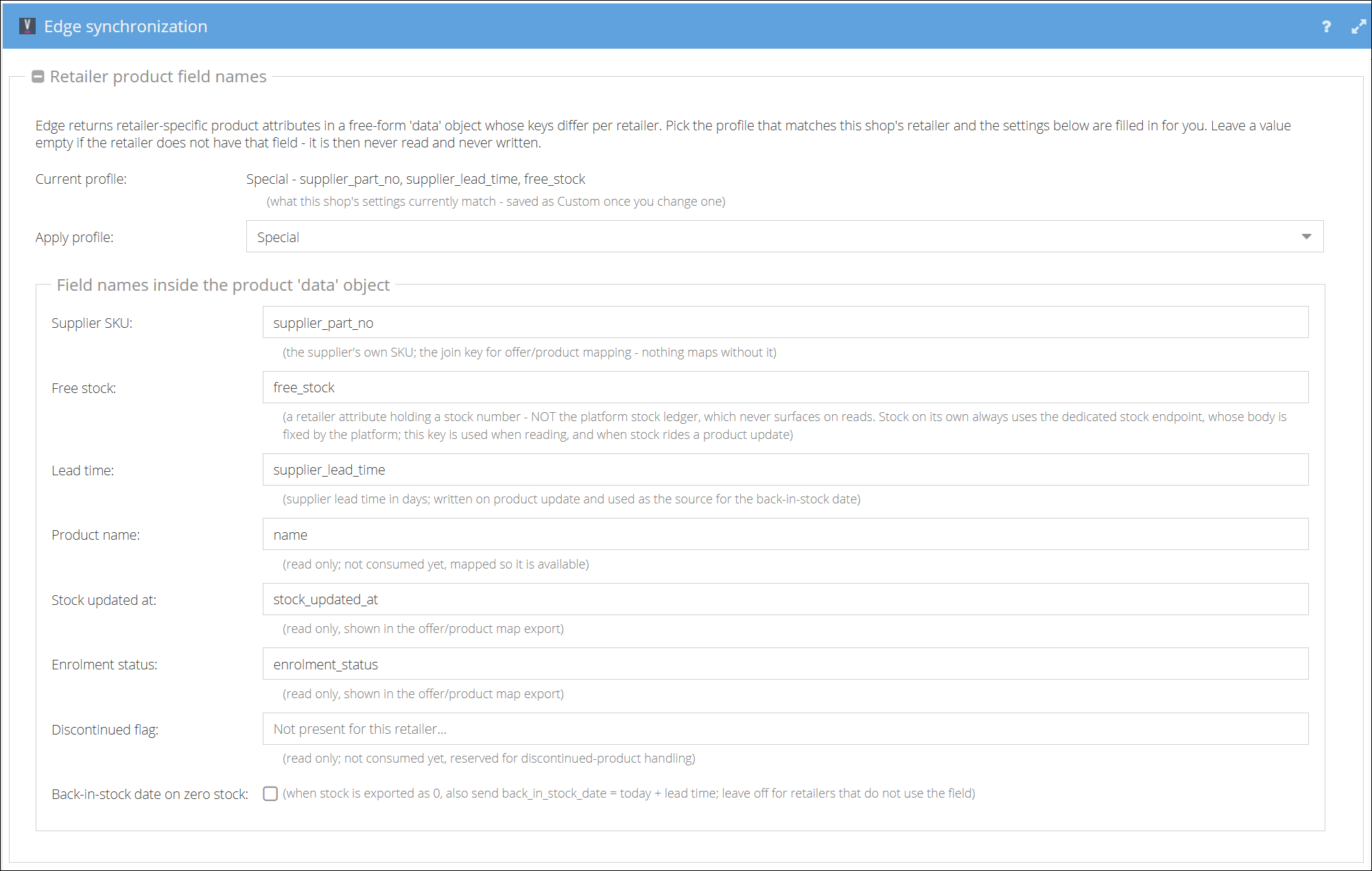
- Click Save or Save and Close.
Current profile is recalculated from the actual settings every time you save. If you change any value after applying a profile, the shop is saved as Custom. You cannot select Custom yourself - it is the result of editing, not a choice.
If you change the Supplier SKU field name on a shop that is already mapped, repeat the mapping process and then click Mark products for export. Existing mappings were built with the previous key and will not be updated automatically.
Standard and Special profiles compared
The table below shows which product field name each profile uses, and what ShopCtrl does with the field. An empty cell means the field is not present for that retailer, so it is neither read nor written.
| Field | What it holds | How ShopCtrl uses it | Standard | Special |
|---|---|---|---|---|
| Supplier SKU | The supplier's own SKU | Required. The key for matching offers to products - nothing is mapped without it | supplier_part_number | supplier_part_no |
| Free stock | A retailer attribute holding a stock number | Read when importing offers, and written when stock is sent together with a product update | supplier_free_stock | free_stock |
| Lead time | Supplier lead time, in days | Written on product update, and used as the source for the back-in-stock date | lead_time_days | supplier_lead_time |
| Product name | The product name | Read only. Mapped so it is available, not used yet | product_name | name |
| Stock updated at | Time of the last stock update | Read only. Shown in the offer/product map export | stock_updated_at | stock_updated_at |
| Enrolment status | The retailer's enrolment status | Read only. Shown in the offer/product map export | (empty) | enrolment_status |
| Discontinued flag | The retailer's discontinued flag | Read only. Reserved for discontinued-product handling, not used yet | discontinued | (empty) |
Applying a profile also fills in the following order and stock settings:
| Setting | Meaning | Standard | Special |
|---|---|---|---|
| Acknowledge sub-status | Optional text sent when an order is acknowledged. Empty means none is sent | Order Acknowledged | (empty) |
| Backorder sub-status | Required by Virtual Stock, so a value is always sent. Falls back to Pending when left empty | Stock Due In | Pending |
| Backorder delivery date | Days between dispatch and delivery, added to the backorder date and sent as the supplier delivery date. Empty means the field is not sent; 0 sends the backorder date unchanged | 0 | (empty) |
| Back-in-stock date on zero stock | When stock is exported as 0, also send a back-in-stock date of today plus the product lead time | Enabled | Disabled |
Some retailers reject a backorder that does not carry a supplier delivery date. If backorders are refused by Virtual Stock, check the Backorder delivery date setting first.