Virtualstock
An employee must be assigned to the shop with a Shop Owner Admin role to perform actions referred to in these articles.
This guide explains how to configure the ShopCtrl integration app module with Virtualstock. Virtualstock is a modular SaaS platform that facilitates collaboration between retailers and their suppliers. The integration connects ShopCtrl to Virtualstock's Supplier API.
What the integration does
Orders
- Importing new orders and cancellation requests
- Acknowledging cancellations (optional)
- Providing shipping dates for backordered items
- Updating tracking numbers for shipped orders
Products
- Synchronizing inventory levels
- Exporting product lead times
- Sending a back-in-stock date for out-of-stock products (optional)
Setting up the integration with Virtualstock
VirtualStock manages API access - you may need to contact their support team to obtain credentials (Client ID and Client secret).
You'll need:
- Sandbox credentials (for testing)
- Production credentials (after UAT completion)
Configuring Shop Synchronization in ShopCtrl
The setup process consists of four steps. Before proceeding, create a new Virtual Stock shop: Create Shop
Virtual Stock (Edge) shop configuration
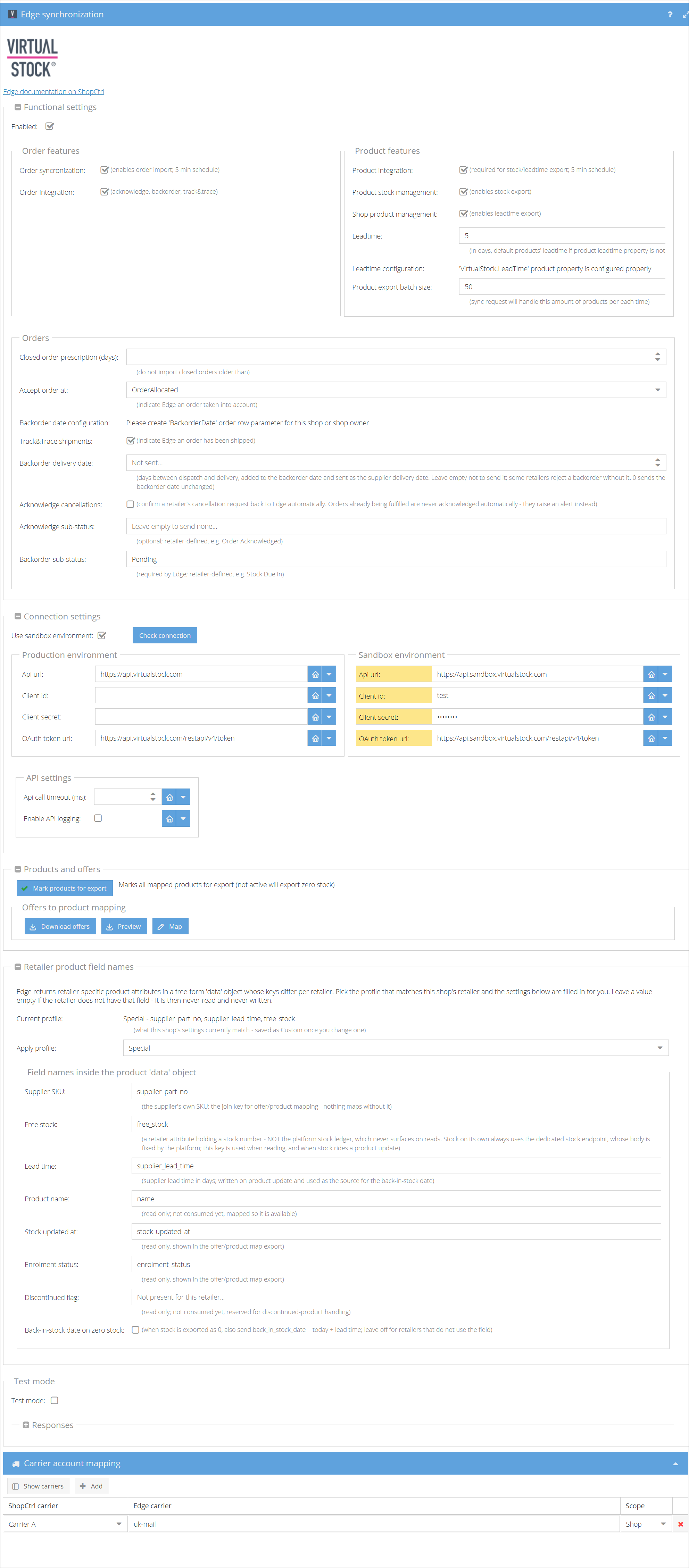
| Step | What you configure |
|---|---|
| Step 1. Connect to Virtualstock | Client ID, Client Secret and the API URLs, then validate the connection. |
| Step 2. Configure retailer product field names | Which product field names your retailer uses, applied through the Standard or Special profile. |
| Step 3. Configure order import and export | Order import, acknowledgement, cancellations, backorders and track & trace, and activating the integration. |
| Step 4. Configure product stock export | Product-offer mapping, lead times and stock synchronization. |
Complete Step 2 before the order and product steps. The retailer profile sets the sub-statuses and backorder delivery date sent with orders in Step 3, and the supplier SKU field that the product-offer mapping in Step 4 is built on.
Recommended order for turning on synchronization
Configure everything first, then switch features on one at a time: imports before exports. Imports only read from Virtual Stock, so a mistake stays inside ShopCtrl. Exports are visible to the retailer, and acknowledgements cannot be taken back.
- Start in the sandbox with all checkboxes off. Repeat the sequence in production after UAT.
- Connect and click Check connection.
- Prepare the settings - none of these send anything by themselves:
- Apply the retailer profile.
- Set Closed order prescription (days). If left empty, the first import brings in the retailer's entire closed-order history.
- Create the
BackorderDateorder row parameter. - Map the carriers.
- Set up the
VirtualStock.LeadTimeproduct property and the Leadtime fallback.
- Enabled + Order synchronization - Enabled is the main switch, and nothing runs until it is on. Turn it on with only Order synchronization ticked, so orders are imported but nothing is sent back. Check the imported orders before going on.
- Order integration - starts sending acknowledgements, backorder dates and tracking. Track&Trace shipments is on by default, so map the carriers first or untick it.
- Acknowledge cancellations (optional) - turn it on if you want ShopCtrl to confirm cancellations automatically, or leave it off to confirm them by hand on the portal.
- Map the products - Download offers, Preview, Map.
- Product integration, then Product stock management and Shop product management. Stock and lead times are only exported while Product integration is on.
- Mark products for export once, to send the initial stock levels.
Mark products for export also exports zero stock for mapped products that are not active. If Back-in-stock date on zero stock is enabled, those products also receive a back-in-stock date. Check which mapped products are inactive before you click it.
One further article covers a task that recurs after setup:
- Updating product mappings - mapping newly added products.
Once all four steps are complete, the integration will automatically maintain data consistency between ShopCtrl and Virtual Stock, streamlining your supply chain operations. For ongoing management, monitor the synchronization status and update product mappings as needed.