Create Invoices
In ShopCtrl, every invoice is based on an order. You can create an invoice in the following ways:
- Manually from the order details page — with full control over which order rows are included
- In one click from the order details page, using Auto create
- For a shipment — to invoice only what was shipped
- In bulk for a selection of orders from the orders table
- Automatically with a trigger, for example when an order is added or shipped
To create invoices, an employee needs the Add Invoice permission for Orders and the Add Invoices permission for Invoices. See Manage roles and permissions.
A new invoice includes all order rows that are not invoiced yet, unless you select specific rows or a shipment. To learn what goes into an invoice and what happens after it is created, see How invoicing works.
Create an invoice from the order details page
Use this option when you want to check or change the invoice before saving it, for example to select specific order rows or set a different invoice date.
-
Open the Sales > Orders tab and double-click the order.
-
In the top actions menu, click Add invoice. If the order has unsaved changes, ShopCtrl saves them first — click OK to continue.

-
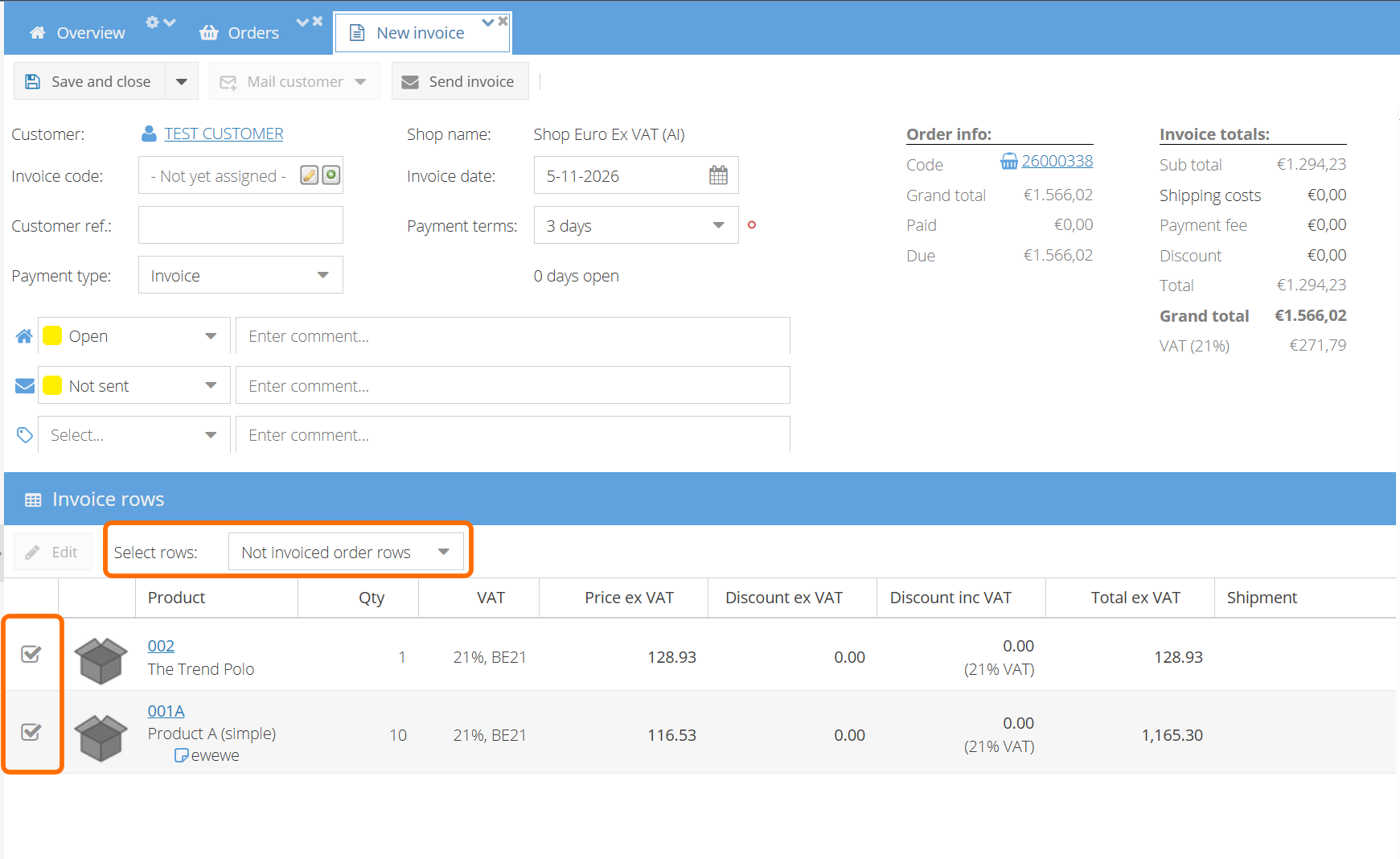
A new invoice details page opens in a new tab. The invoice is not saved yet.
-
Check the Invoice rows. Use the checkboxes in the first column to add or remove order rows. In the Select rows list you can choose:
- Not invoiced order rows — all rows that are not invoiced yet
- Shipment: [shipment code] — only the rows of that shipment
-
If needed, change the invoice details: Invoice date, Payment type, Payment terms, Customer reference. To use a specific invoice number instead of the next number in the range — for example, to fill a gap left by a deleted invoice — enter it in the Invoice code field.
-
Save the invoice using one of the options on the Save and close button:
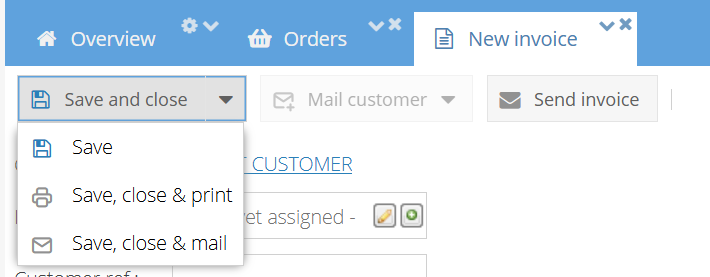
- Save and close / Save
- Save, close & print — opens the invoice PDF for printing
- Save, close & mail — opens a new email to the customer with the invoice attached
The invoice number is assigned and the invoice PDF is generated from your invoice document template when the invoice is saved.
Auto create an invoice
To create and save an invoice for all rows not yet invoiced in one click:
- Open the order details page.
- Click the arrow next to Add invoice and select Auto create.

- Click OK to confirm. The order is saved, the invoice is created, and the page is refreshed.
The new invoice appears under Invoices in the Topics section of the order details page. It is not sent to the customer automatically.
Create an invoice for a shipment
To invoice only the items that were shipped:
- Open the shipment from the Shipments table, or from the Shipments tab of the order details page.
- Click Create invoice.

- A new invoice details page opens with the rows of this shipment selected. Order rows that are not shipped by nature (for example, services) are also included.
- Check the invoice and click Save and close.
The Create invoice button is not available when all rows of the shipment are already invoiced or when the order is on hold.
Create invoices in bulk
To create invoices for several orders at once:
-
Open the Sales > Orders tab.
-
Select or filter the orders. Tip: filter on Not invoiced to see only orders without an invoice.
-
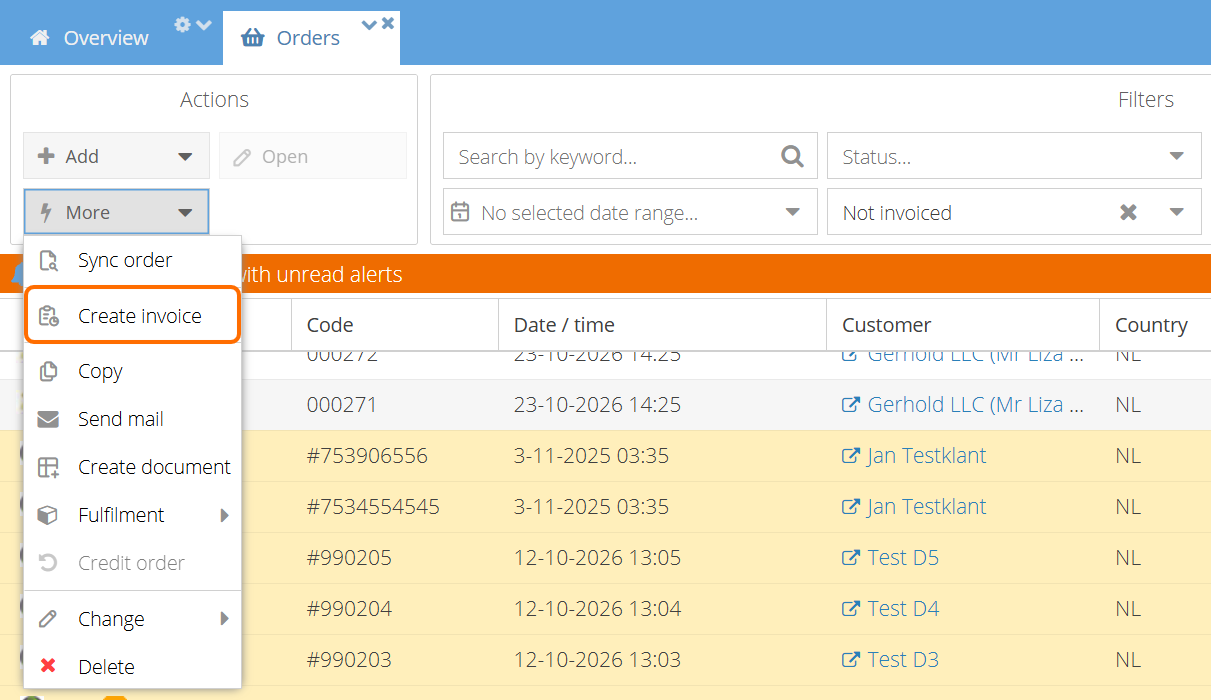
In the Actions menu, click More > Create invoice.
-
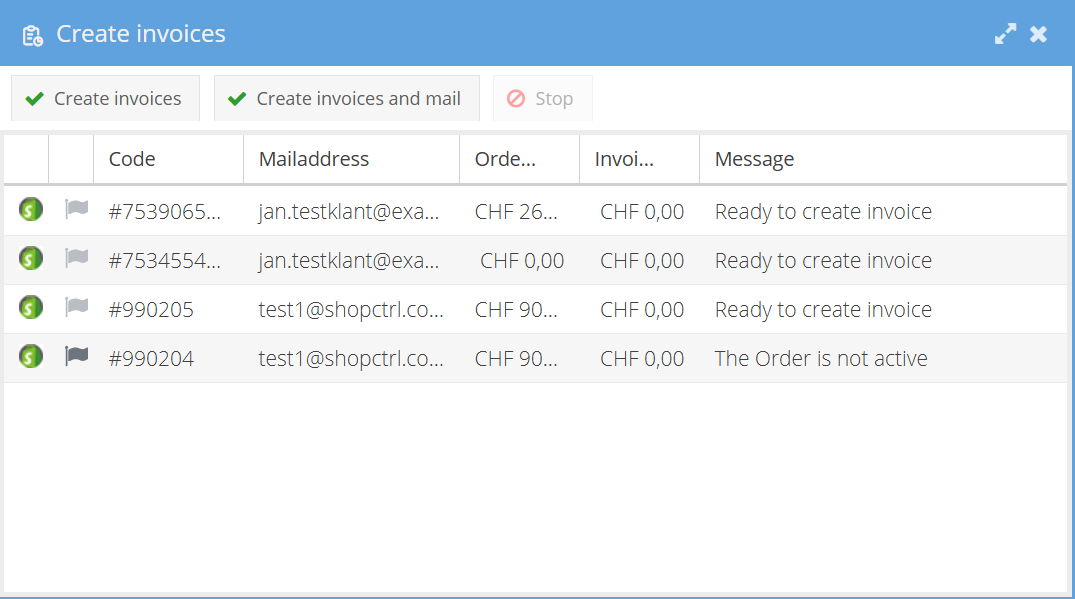
The Create invoices window opens and shows the status of each order:
- Ready to create invoice
- Order partially invoiced. — an invoice is created for the remaining rows
- Order already invoiced. — the order is skipped
- The Order is not active / The Order has no rows — the order is skipped
-
Click one of the buttons:
- Create invoices — creates the invoices
- Create invoices and mail — creates the invoices and emails each one to the customer
-
Follow the progress in the Message column. Click Stop to interrupt the process.
-
When it is finished, the Message column shows Invoice created. for each invoiced order. Click Pdf to open all created invoices.
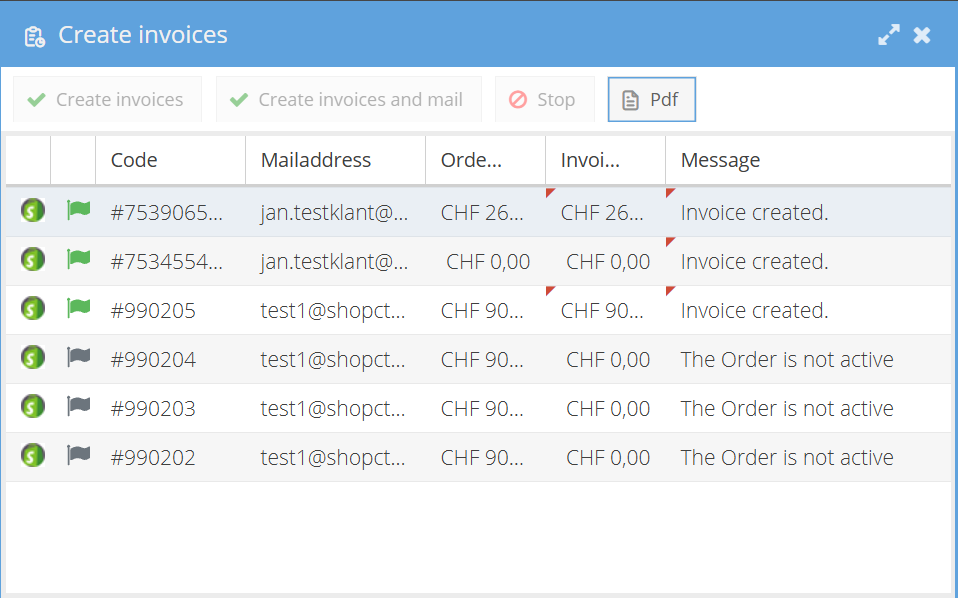
In bulk, each invoice includes all rows of the order that are not invoiced yet and uses today's date.
When you use Create invoices and mail:
- The email uses the customer's invoice mail template, or the shop's default invoice mail template if the customer has none.
- The email is sent to the customer's invoice email address. If it is empty, ShopCtrl uses the order's billing email address, and then the customer's email address.
- The invoice sent status is set to Sent.
Create invoices automatically with triggers
Use the Create invoice trigger action to create invoices automatically, for example when an order is added or shipped. The action does not send the invoice — to email it, add a Send email action to the same trigger.
Ready-to-use setups:
- Create an invoice when an order is shipped
- Create an invoice when an order is added
- Auto-invoice only for orders with a specific parameter
Orders generated from a customer contract can also be invoiced and mailed automatically, based on the contract's invoice settings.
Troubleshooting
If an invoice cannot be created or mailed, see Invoice troubleshooting.