Delete an Invoice
You can delete an invoice that was created by mistake, as long as it has the Draft main status. After you delete it, the order rows are no longer invoiced, so you can create a new invoice for them.
Required Permissions
An employee needs the Delete Invoices permission. If the invoice was already exported to your accounting system, only an admin can delete it. See Manage roles and permissions.
Delete an invoice
- Open the invoice from the Sales > Invoices table.
- If the invoice is not a draft, change the main status to Draft and click Save. See Invoice statuses.
- Click Delete in the top actions menu.
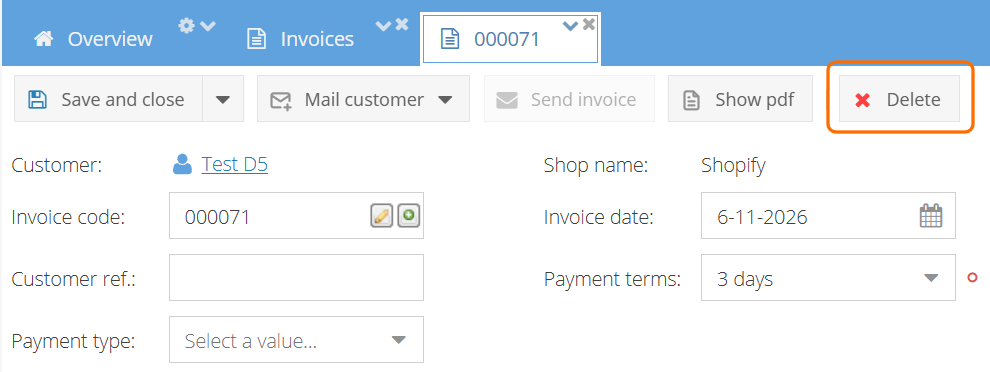
- Click OK to confirm.
The invoice is removed from the invoices table, and its PDF is archived. The order rows of the invoice are available again for a new invoice.
Please note
- Only Draft invoices can be deleted. For other invoices you get the message Can't delete an invoice when it does not have the status New.
- If the invoice already has an invoice number, deleting it leaves a gap in your invoice numbering. To fill the gap, note the number before you delete the invoice. When you create the next invoice, enter this number manually in the Invoice code field before you save it. The number of a deleted invoice can be reused.
- If the invoice was already sent to the customer, do not delete it. Correct the invoice with a credit invoice instead.