Change the VAT on an Invoice
The VAT on an invoice comes from the order. To change it, set the invoice to Draft, change the VAT on the order, and finalize the invoice again.
Change the VAT
-
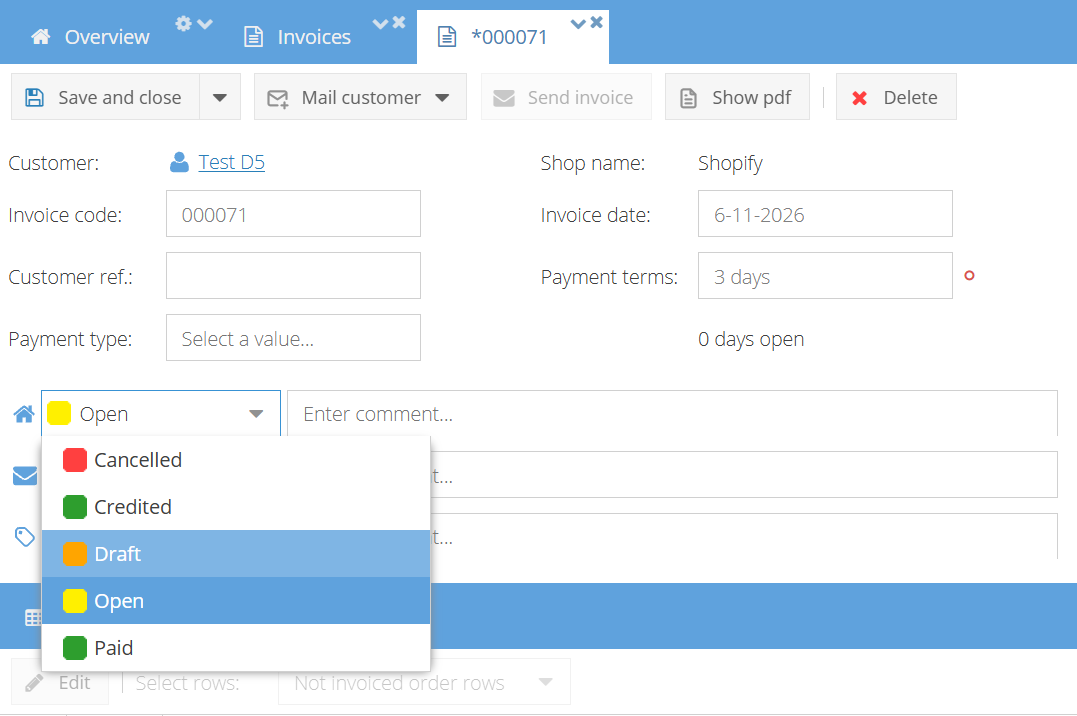
Open the invoice, change the main status to Draft, and click Save.
-
Open the order: click More > Edit corresponding order in the Sales > Invoices table, or click the order code on the invoice details page.
-
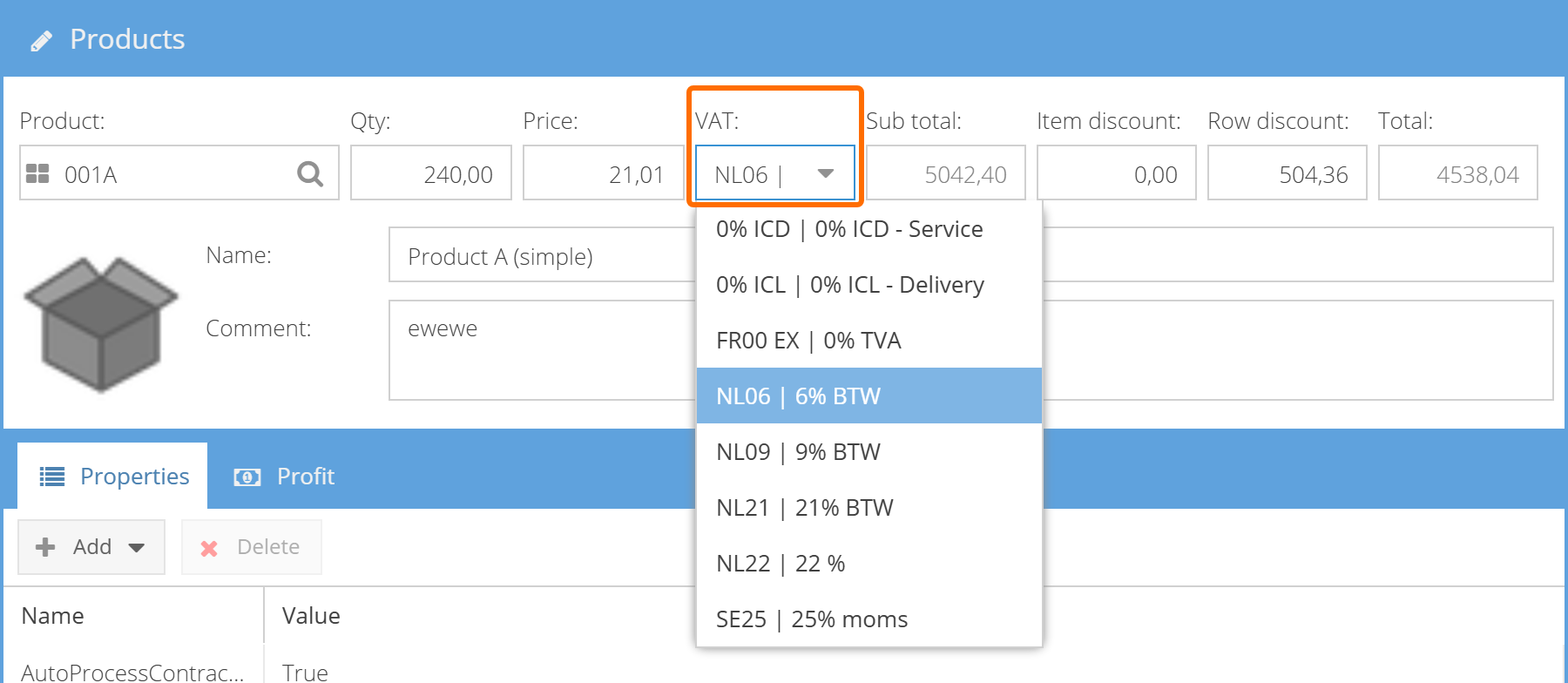
Change the VAT of each item that needs it:
-
Order row — edit the row and select the new VAT tariff.
-
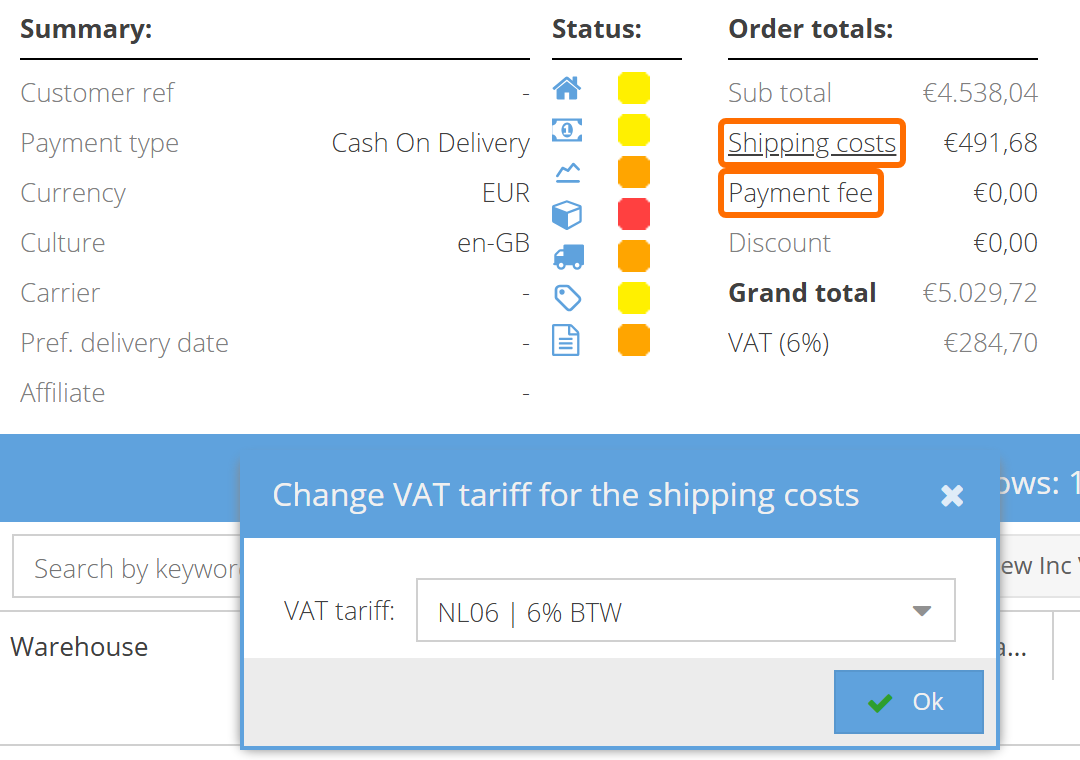
Shipping costs — click Shipping costs in the order totals, select the VAT tariff, and click Ok.
-
Payment fee — click Payment fee in the order totals, select the VAT tariff, and click Ok.
-
-
Save the order.
-
Open the invoice again, change the main status back to Open (or Paid if the invoice was already paid), and click Save.
The invoice PDF is generated again when you change the main status.
If the invoice PDF still shows the old VAT, select the invoice in the Sales > Invoices table and click More > Recreate invoice PDF.
You cannot change the VAT for the complete order at once (by clicking VAT total on the order) while the order has an invoice — even a draft one. Change the VAT of each row, the shipping costs and the payment fee separately.
When to use a credit invoice instead
If the invoice was already sent to the customer or exported to your accounting system, correct the invoice with a credit invoice and a new invoice instead.
Changing an invoice from Open back to Draft requires a separate permission. If the invoice was already exported, only an admin may be able to change its main status.