Correct a Wrong Invoice
If an invoice contains an error — for example wrong customer details, prices or VAT — you cannot edit it once it is final. Instead, you credit the wrong invoice and issue a new, correct one. This works whether the invoice is already paid or not.
ShopCtrl does most of the work for you with the Create credit invoice & prepare for a new invoice option. It:
- Creates a credit invoice that cancels out the wrong invoice
- Copies the order rows, so they can be included in the new invoice
- Moves the shipping information of the order rows to the copies, so your stock records stay correct
- Removes the payment from the wrong invoice, so it can be allocated to the new invoice
If the invoice is still a draft, or you only need to change the VAT, you may not need a credit invoice. See Change the VAT on an invoice and Delete an invoice.
Step 1. Credit the wrong invoice
- Open the order from the Sales > Orders table.
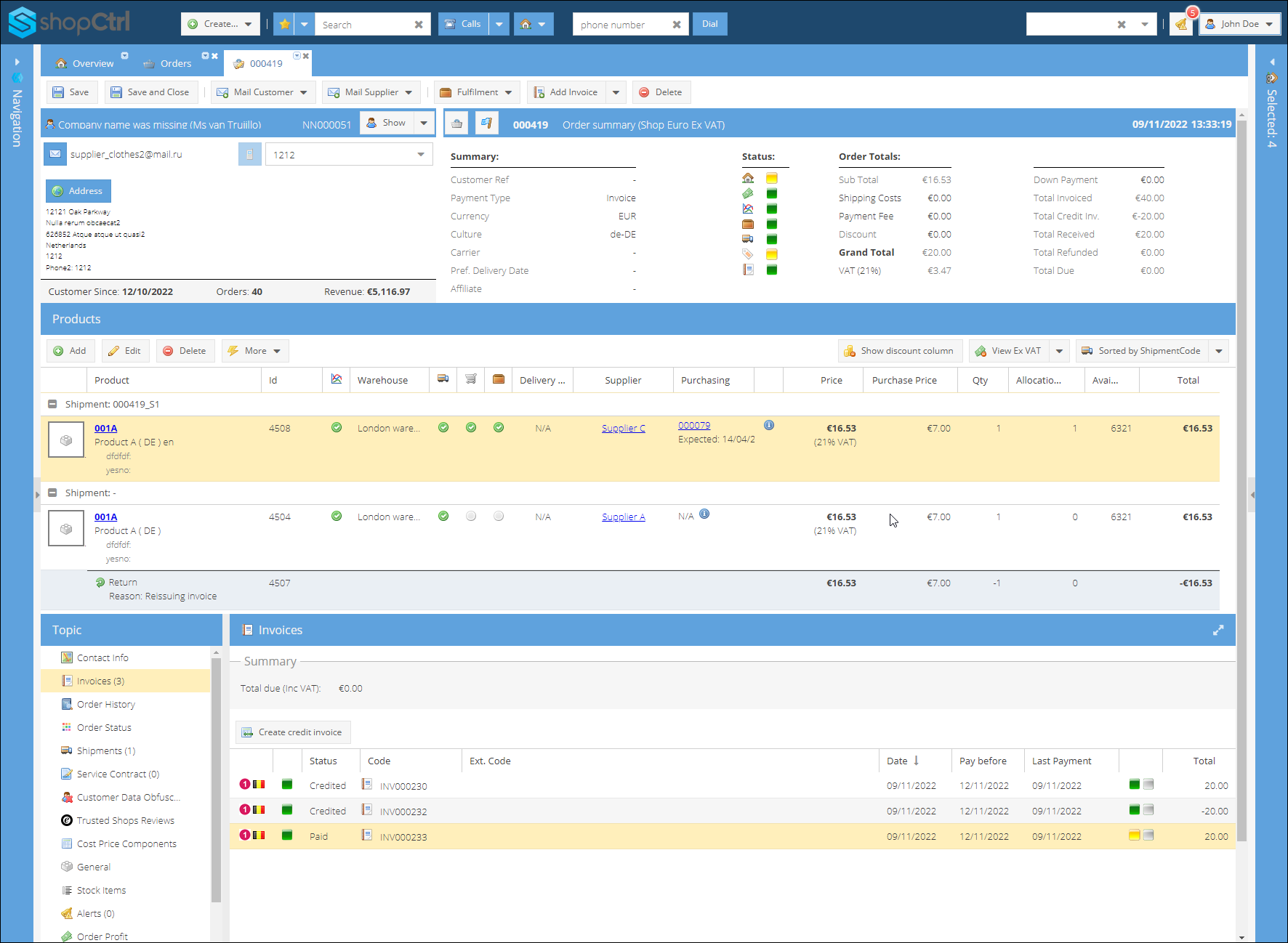
- In the Topics section of the order details page, open Invoices.
- Select the wrong invoice and click Create credit invoice.
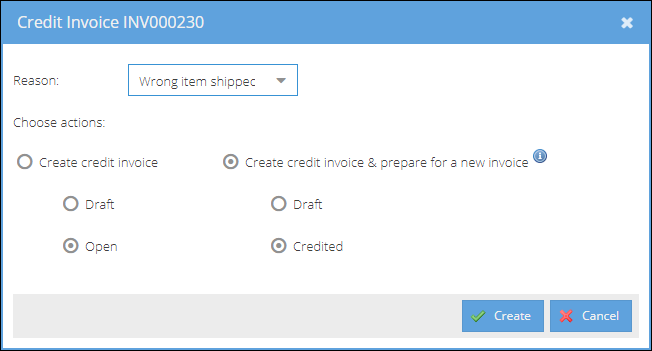
- In the popup window, select the Reason for the credit.
- Select Create credit invoice & prepare for a new invoice, and choose the status of the credit invoice:
- Draft — the credit invoice is created without an invoice code
- Credited — the credit invoice gets an invoice code automatically
- Click Create.
The order rows are credited with the reason you selected and copied with their shipping information. The wrong invoice and the credit invoice cancel each other out. If the wrong invoice was paid, ShopCtrl creates the payments needed to balance both invoices.
Step 2. Correct the order
Open the order and change the data that was wrong, then save the order. For example:
- Customer details — correct the name, address or contact details.
- Wrong VAT — change the VAT tariff of the order rows. See Change the VAT on an invoice for where to change it.
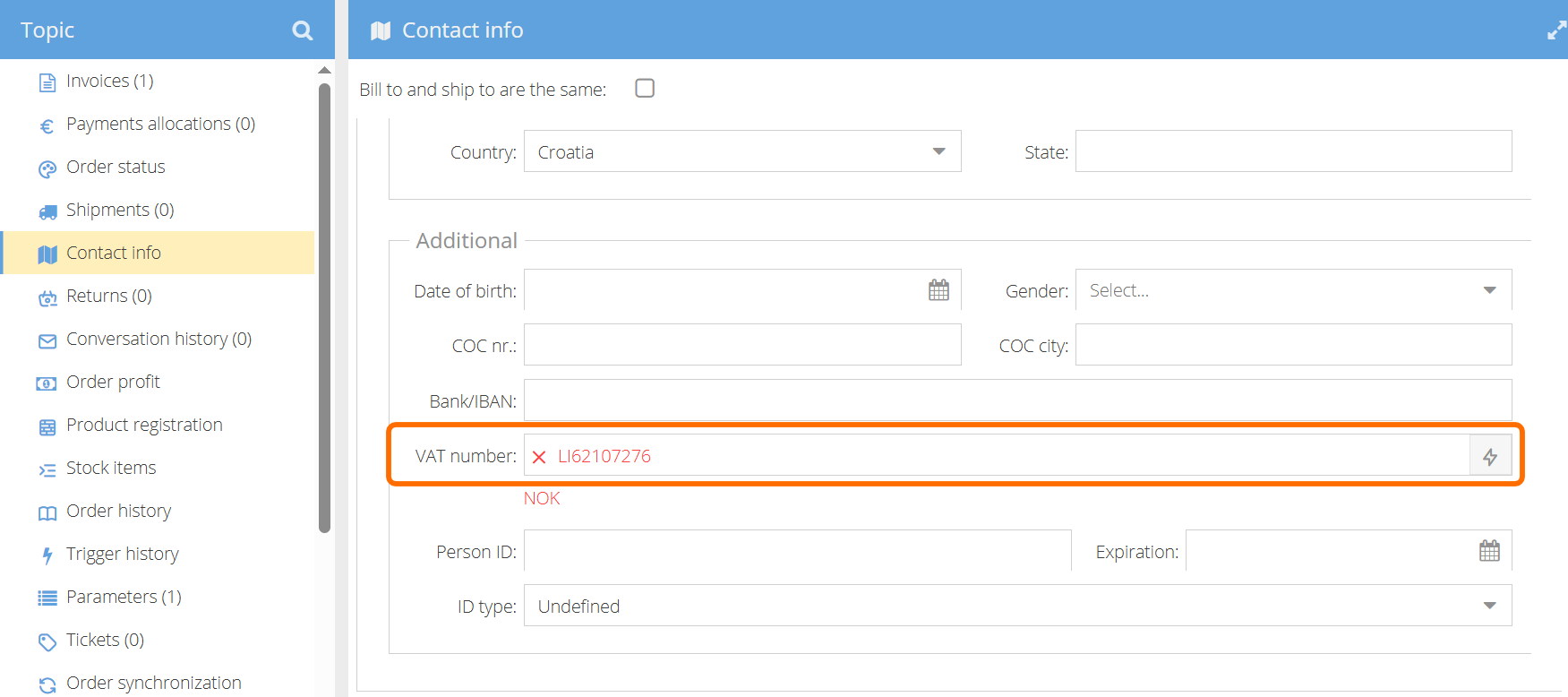
- VAT-exempt invoice — the customer provides a valid VAT number after the invoice was issued and needs an invoice without VAT (intra-community supply). Add the VAT number to the contact info on the order, and change the VAT tariff of the order rows to your intra-community (0%) VAT tariff.
After you credit an invoice, you cannot change the VAT tariff of the shipping costs and the payment fee on the order. The new invoice uses the original VAT tariff for them. Only the VAT of the order rows can be changed.
If you need to change the VAT of the shipping costs or the payment fee, contact ShopCtrl support before you create the new invoice.
Step 3. Create the new invoice
Create the new invoice for the order manually. See Create an invoice from the order details page.
When you save the new invoice, the customer's payment is allocated to it automatically.