Invoices Overview
All invoices are listed in the Sales > Invoices table. From here you can find invoices, follow up unpaid or unsent invoices, and act on one or several invoices at once.
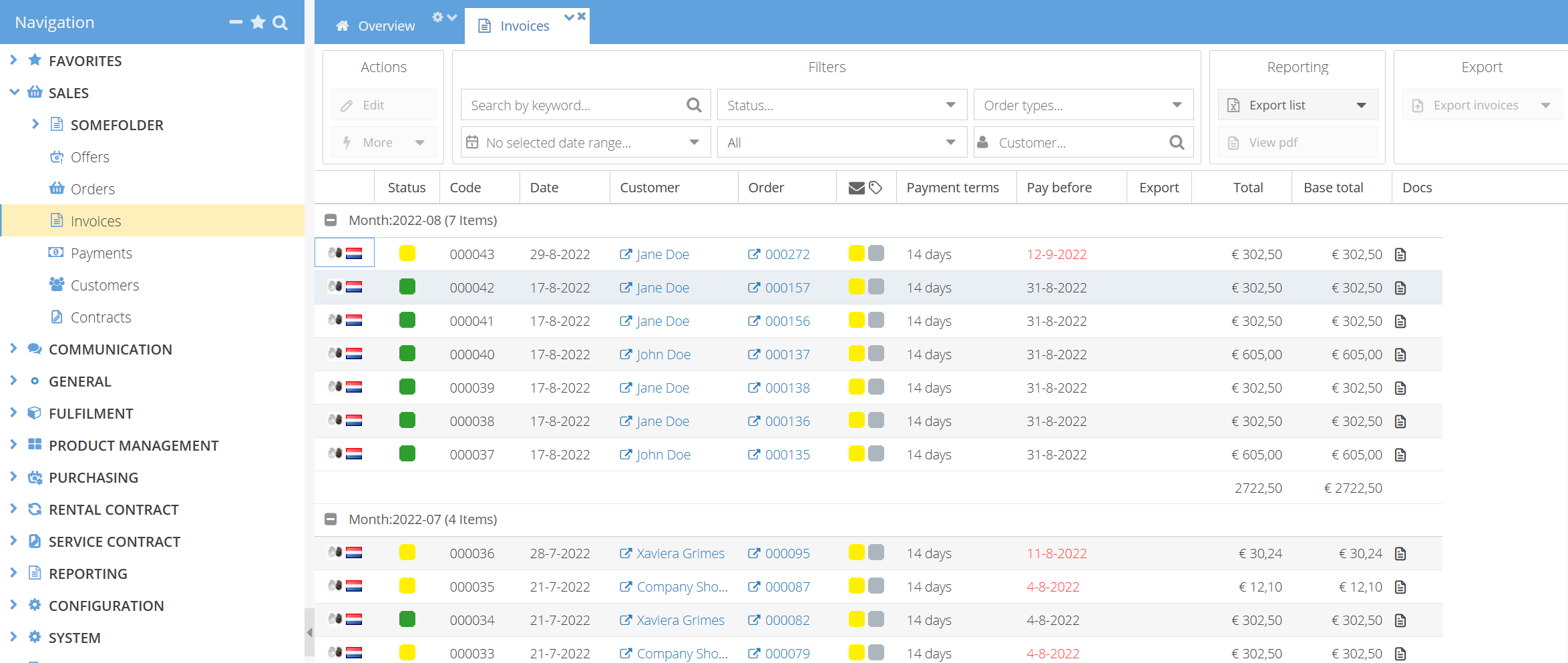
In ShopCtrl, every invoice is based on an order. To create invoices, see Create invoices.
To see invoices, an employee needs the View Invoices permission. To change statuses or mail invoices, the Edit Invoices permission is also needed. See Manage roles and permissions.
Find invoices
Use the filters at the top of the table. Filters combine: an invoice is shown only if it matches all of them.
- Search by keyword... — type and press Enter. Searches the invoice code, order code, customer reference, and the billing name, company, email, postal code and city.
- Status... — select one or more main, sent or custom statuses and click Apply.
- Order types... — show invoices for specific order types only.
- Date range — filter on the invoice date.
- Customer — show the invoices of one customer.

Quick filters
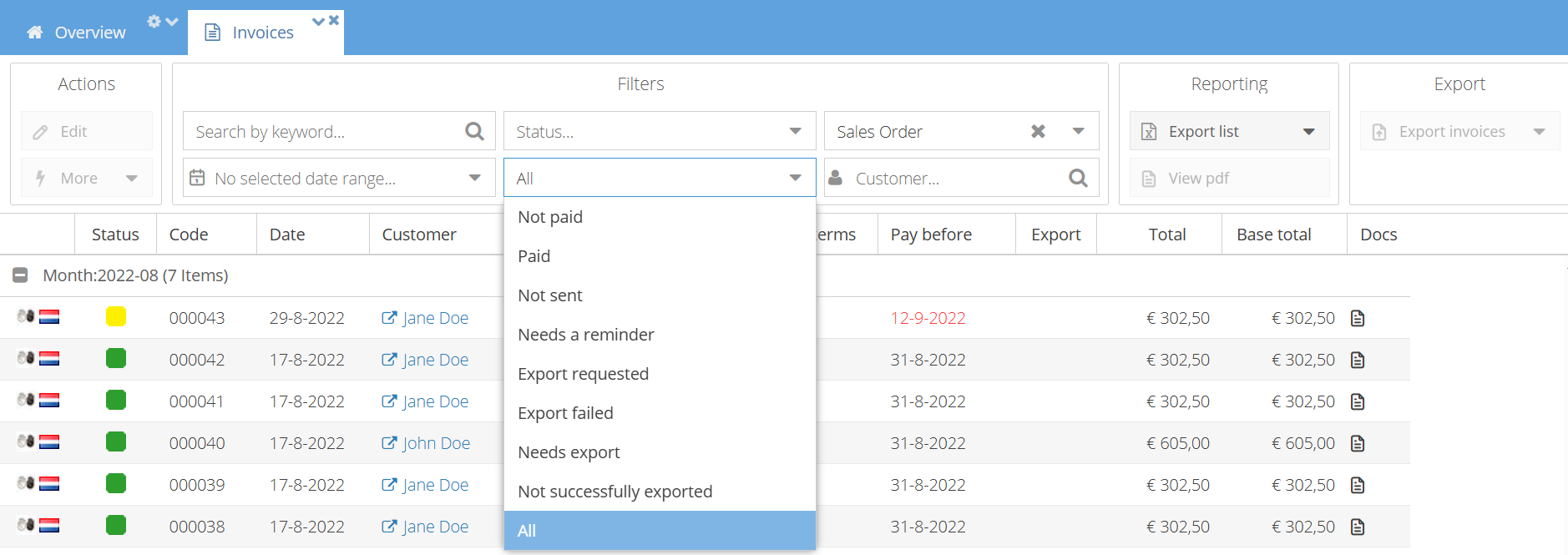
Use the quick filter list to see invoices that need follow-up:
- Not paid — open and draft invoices
- Paid — paid invoices, including credited invoices
- Not sent — invoices that were not sent to the customer yet
- Needs a reminder — open invoices past their payment date that need a (next) reminder
- Needs export, Export requested, Export failed, Not successfully exported — invoices to follow up for the export to your accounting system
Select All to clear the quick filter.
Open an invoice or its order
- To open an invoice, double-click it, or select it and click Edit.
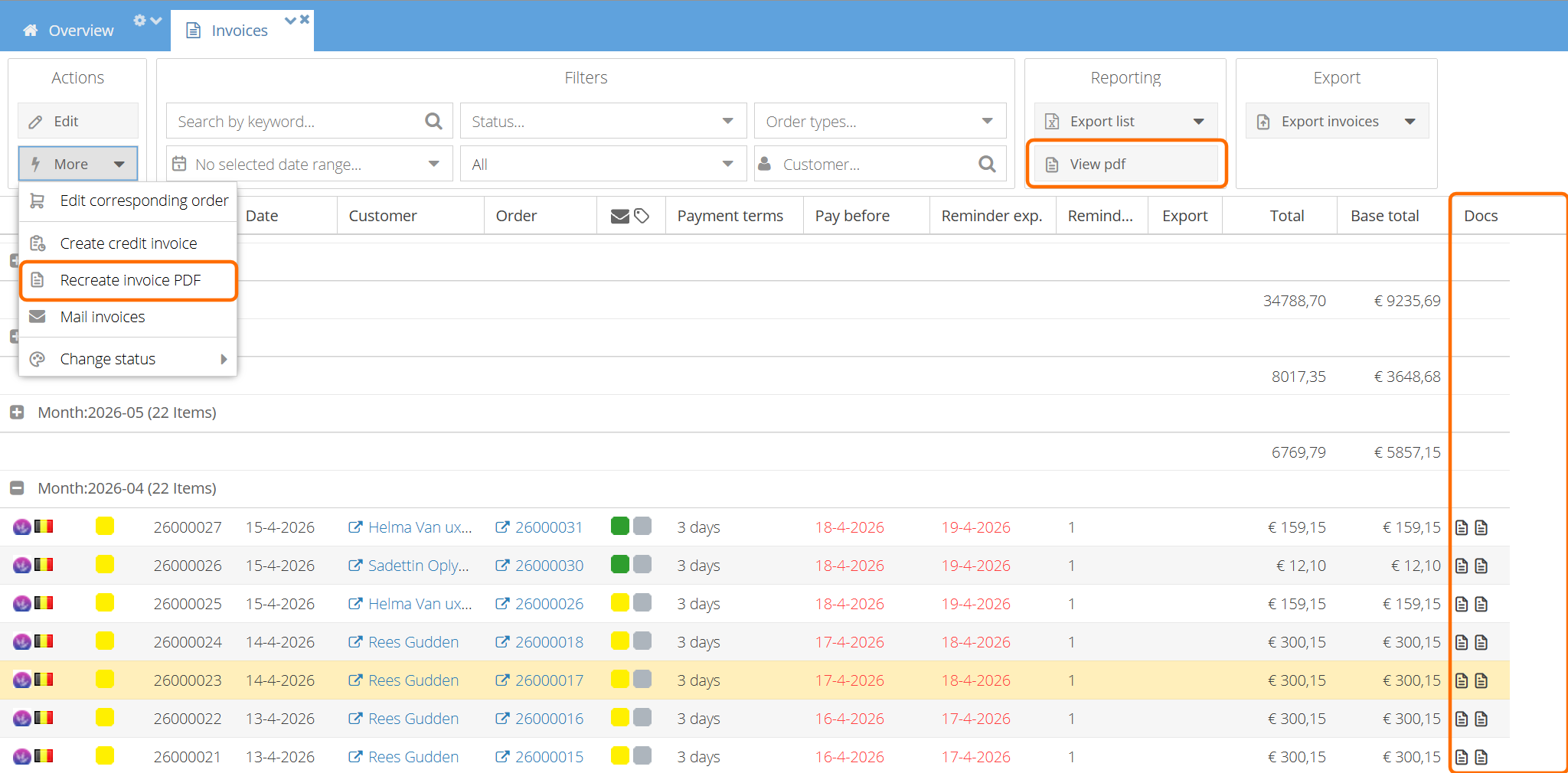
- To open the order of an invoice, select it and click More > Edit corresponding order.
View and print invoice PDFs
- To view the PDF of one invoice, click the icon in the Docs column and select Show invoice PDF. If a reminder was sent, you can also select Show reminder PDF.
- To open the PDFs of several invoices at once, for example to print them, select the invoices and click Reporting > View pdf.
- If invoice PDFs are outdated, for example after you changed the invoice template, select the invoices and click More > Recreate invoice PDF.
Mail invoices
To email invoices to customers:
-
Select the invoices.
-
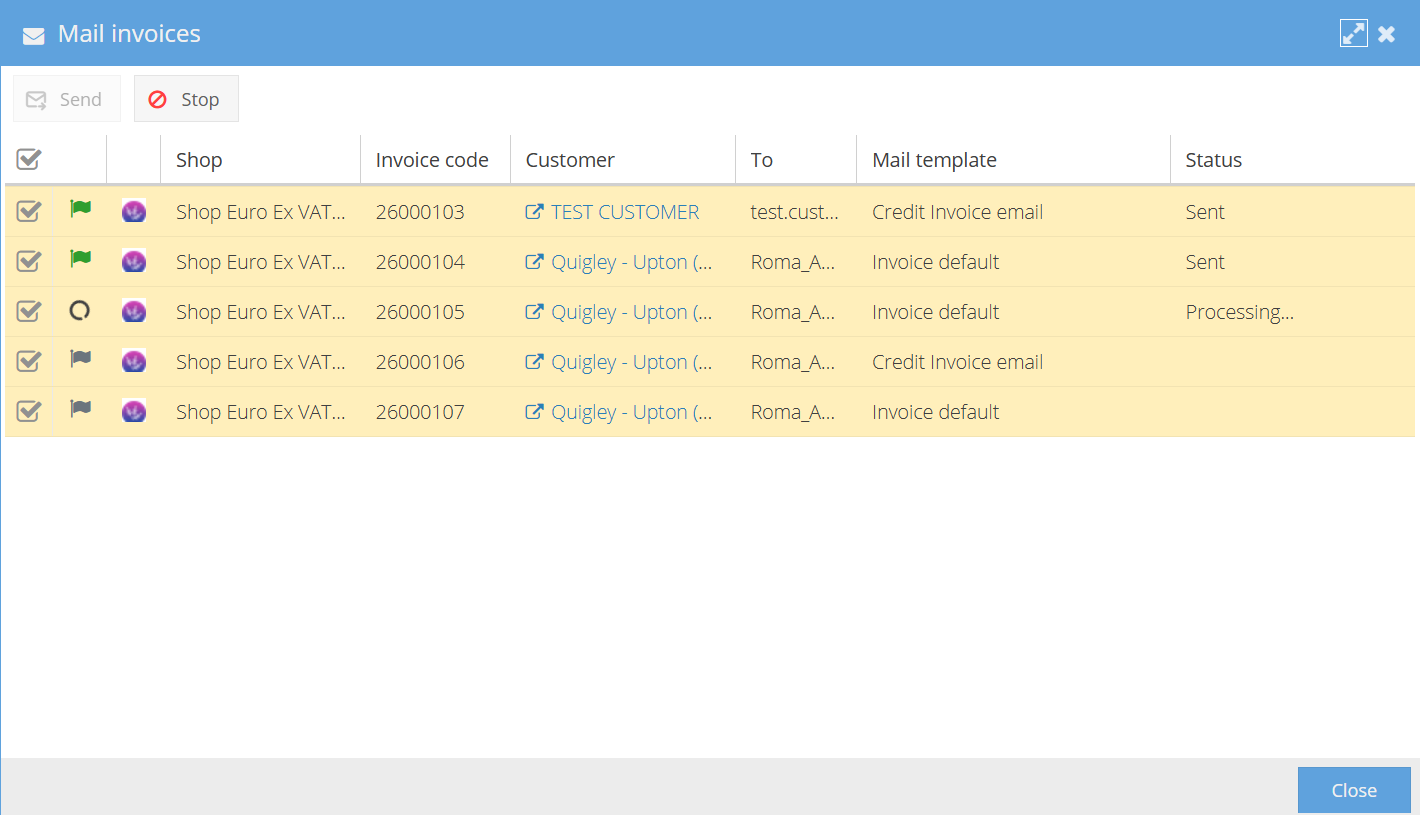
Click More > Mail invoices. A window shows the customer, email address and mail template for each invoice.
-
Check the warnings. Invoices without an email address, mail template or invoice PDF are not sent.
-
Click Send.
The sent status of the mailed invoices changes to Sent.
Change the status of invoices
-
Select one or more invoices.
-
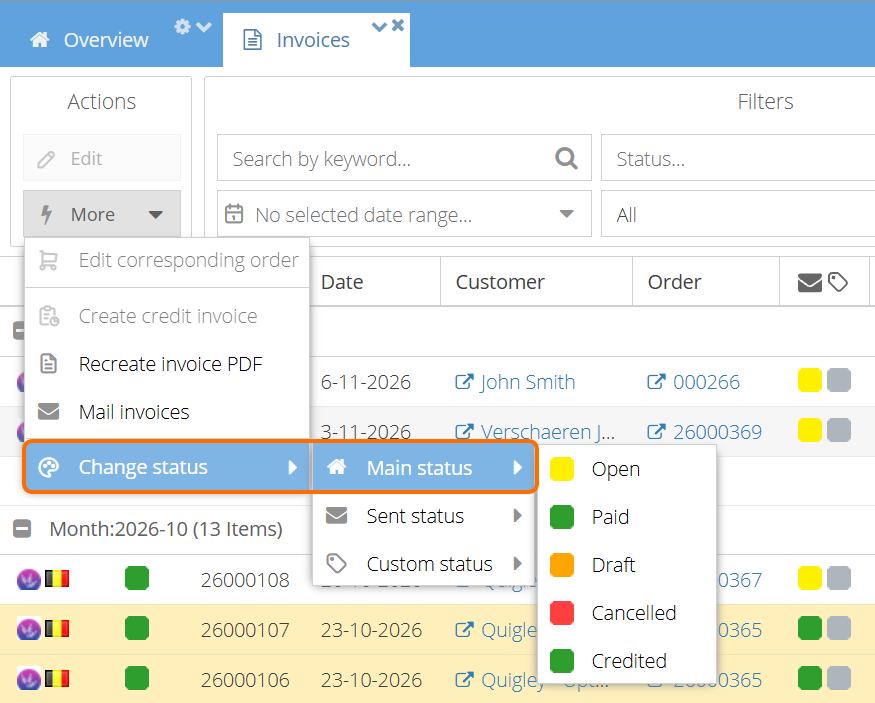
Click More > Change status and choose Main status, Sent status or Custom status.
-
Select the new status.
The list shows only the statuses you have permission to set. For example, you can mark an invoice as Paid when the payment was received outside ShopCtrl. See Invoice statuses.
Create a credit invoice
Select the invoice and click More > Create credit invoice. See Credit invoice.
Export invoices
- To Excel — click Reporting > Export list and choose Export current page, Export selection or Export all.
- To your accounting system — select the invoices and click Export > Export invoices, choose the connector, and click Start export. See Exact Online.

The Export column shows the export result of each invoice.
Show or hide columns
You can add or remove columns using the column header menu. Your column layout is saved for your user.
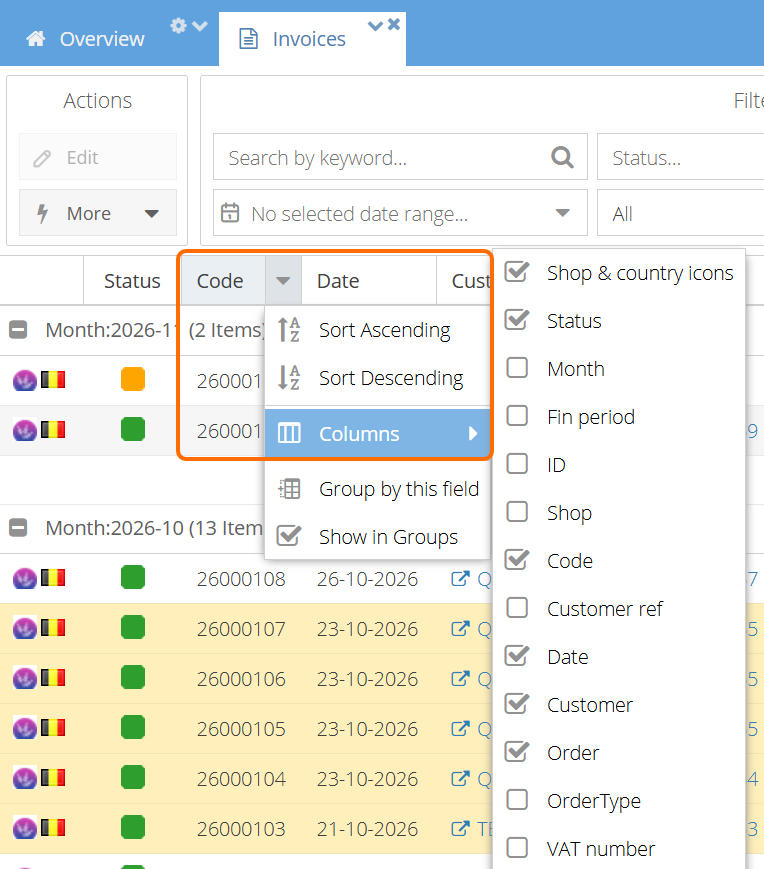
Columns shown by default include the status icons, Code, Date, Customer, Order, Payment terms, Pay before, Total and Docs. Pay before is shown in red when an unpaid invoice is overdue.
Useful columns you can add:
- Customer ref, VAT number, Payment type
- SumPayments — the amount paid
- Reminders — the number of reminders sent
- Fin period — the financial period
- Bill to address, Bill to city, Bill to postal code, Bill to country