Invoice Statuses
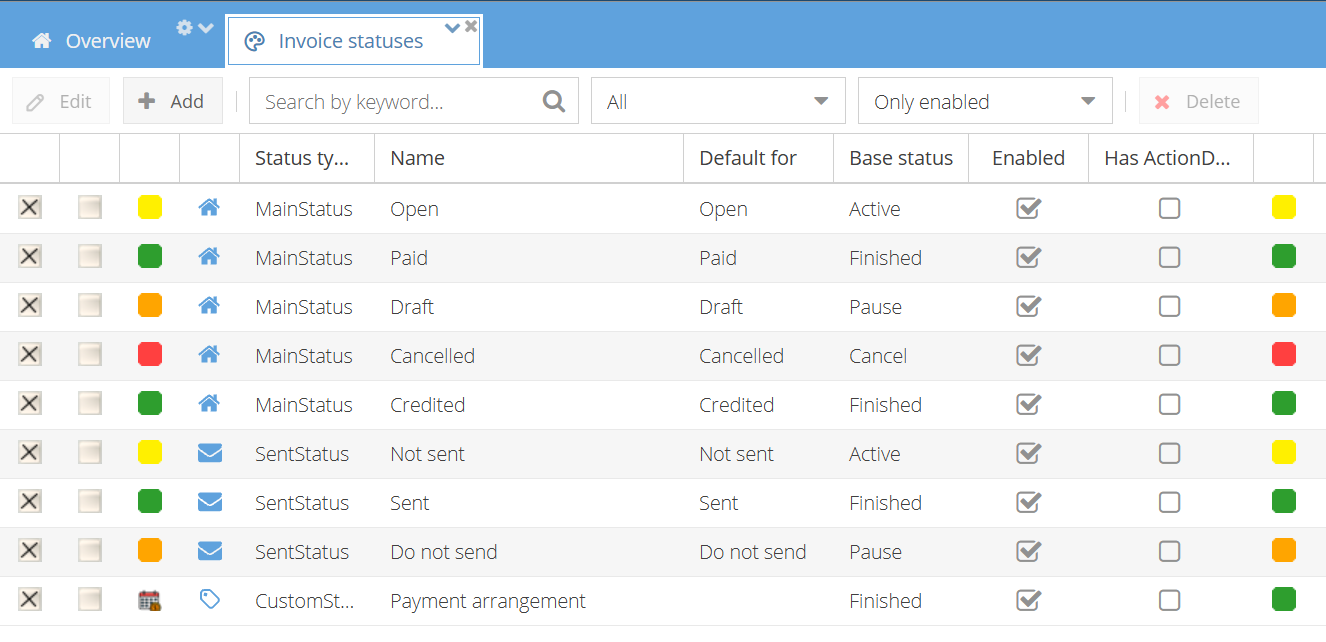
Each invoice has three statuses. You see them on the invoice details page and as icons in the Invoices table:
- Main status (house icon) — where the invoice is in its life cycle, for example Draft, Open or Paid
- Sent status (envelope icon) — whether the invoice was sent to the customer
- Custom status (tag icon) — an optional status for your own process. ShopCtrl does not change it automatically.

Every status is linked to a base status. The base status defines how ShopCtrl handles the invoice and which icon colour is shown:
- Pause (orange) — draft or on hold
- Active (yellow) — open, still to be processed
- Finished (green) — completed, for example paid or sent
- Cancel (red) — cancelled
Default statuses
Main status
- Draft (Pause) — the invoice can still be edited and has no invoice number yet
- Open (Active) — the invoice is final and waits for payment
- Paid (Finished) — the invoice is fully paid
- Credited (Finished) — the invoice is cancelled out by a credit invoice
- Cancelled (Cancel)
Sent status
- Not sent (Active)
- Sent (Finished)
- Do not send (Pause) — for invoices that should not be sent to the customer
A new invoice gets the Open and Not sent statuses. You can add your own statuses, see Add or edit invoice statuses.
Automatic status changes
ShopCtrl changes the status of an invoice when:
- The invoice is paid — when the payments cover the invoice total, the main status changes to Paid. If a payment is removed and the invoice is no longer fully paid, the status changes back to Open.
- The invoice is mailed — when an email with the invoice PDF attached is sent, the sent status changes to Sent.
- The invoice is credited — when a credit invoice cancels out an unpaid invoice of the same order, both invoices get the Credited status.
If you set an invoice to Paid manually, ShopCtrl creates a payment for the open amount.
What you can do in each main status
| Draft | Open, Paid, Credited | |
|---|---|---|
| Edit invoice details and rows | Yes | No |
| Invoice number | Not assigned yet | Assigned |
| Print, mail or send the invoice | No | Yes |
| Delete the invoice | Yes | No |
When you change a Draft invoice to Open, ShopCtrl assigns the invoice number and sets the invoice date if it is empty. To correct an invoice that is no longer a draft, see Change the VAT on an invoice or Correct a wrong invoice.
Changing an invoice from Open back to Draft requires a separate permission. If the invoice was already exported to your accounting system, only an admin may be able to change its main status.
Change the status of an invoice
On the invoice details page
- Open the invoice.
- In the status rows, select the new main, sent or custom status.
- Optionally, enter a comment, or set an action date as a reminder for a follow-up.
- Click Save and close.
For several invoices at once
Select the invoices in the Sales > Invoices table and click More > Change status. See Invoices overview.
Automatically
Use the Set invoice status trigger action.
You can select only the statuses you have permission to set.
Add or edit invoice statuses
Only a Shop Owner Admin can add or edit invoice statuses.
-
Go to Configuration > Statuses > Invoice statuses.
-
Click Add, or double-click an existing status.
-
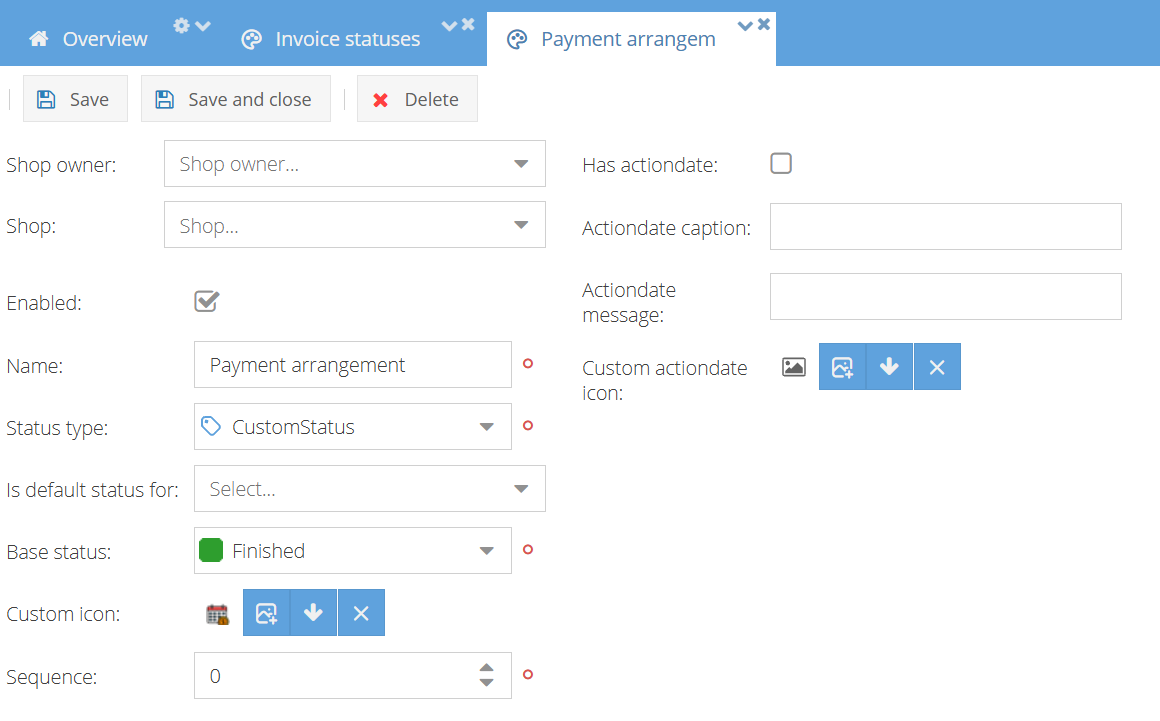
Fill in the fields:
- Status type — Main, Sent or Custom status
- Base status — defines how ShopCtrl handles invoices with this status
- Name — the name shown to users
- Shop — leave empty to use the status for all shops
- Is default for — makes this the default status, for example the status a new invoice gets
- Icon — optional custom icon
- Has actiondate — lets users set an action date for this status
-
Save the status.
Invoice status on the order
On the order details page, the invoices of the order are listed under Invoices in the Topics section. The order's invoice status is shown as a small icon in the order totals — hover over the icon to see the status. It is based on the invoices of the order:
- Not invoiced — some order rows are not invoiced yet
- Not sent — some order rows are on a Draft invoice
- Not paid — some order rows are on an Open invoice
- Paid — all order rows are on paid invoices
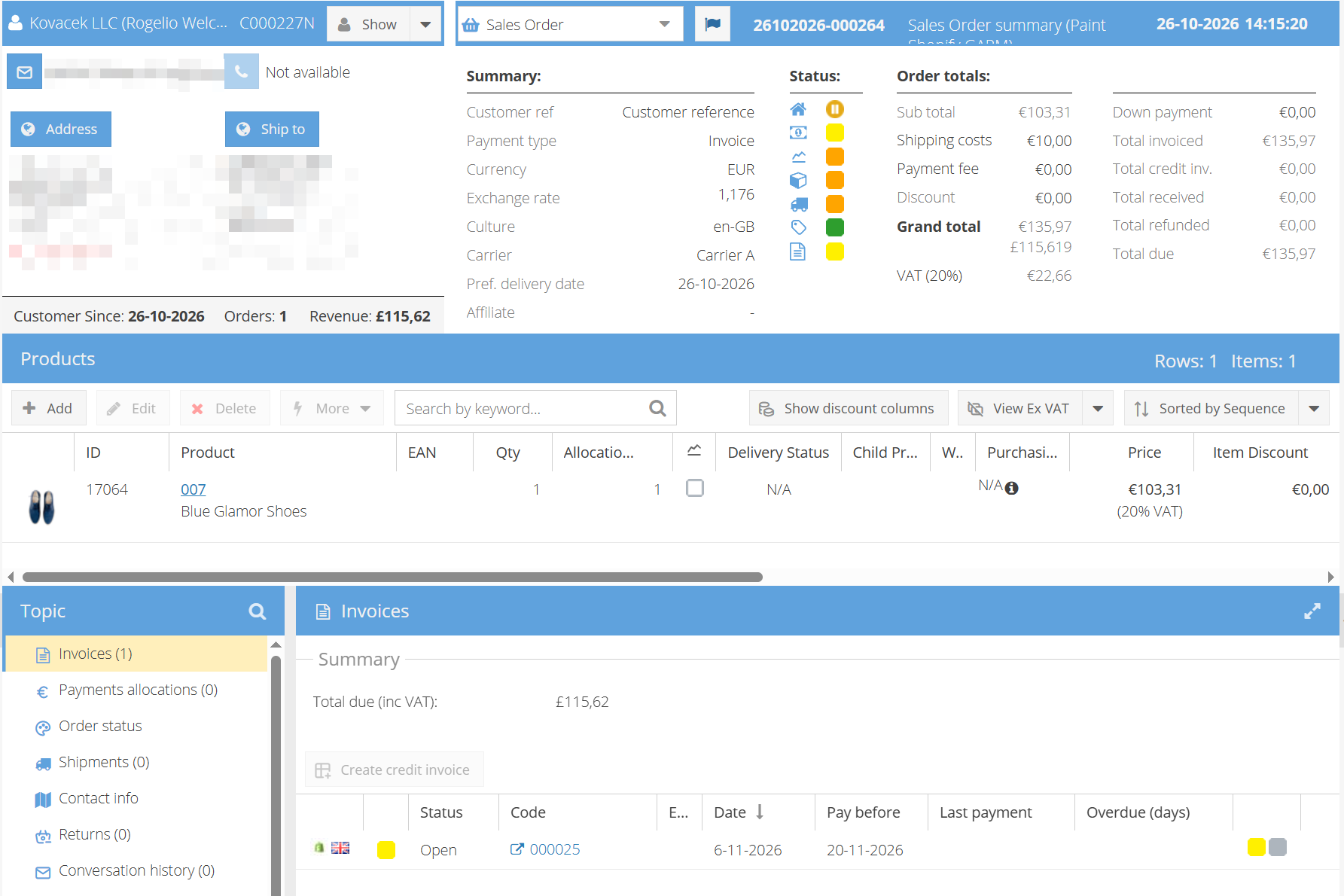
On the order, Not sent means that an invoice is still a draft — not that the invoice was not emailed. To check whether an invoice was emailed, look at its sent status.