Configure Invoicing
Before you create invoices, set up how invoices are numbered, which templates are used, and which payment terms apply. Most settings are made per shop, in the shop settings under Financial.
- Shop settings: the Edit Tab: Financial Details permission for the shop.
- Invoice numbering and shop owner settings: a Shop Owner Admin role.
Open the financial settings
- Shop settings — right-click the shop name in the sales channel pane and select Settings, or go to Configuration > Shops and open the shop. In the left menu, open Financial.
- Shop owner settings — go to Configuration > Shop owners and open the shop owner. In the left menu, open Financial.
Shop settings take precedence over shop owner settings.
Set the default invoice templates
The templates define what the invoice document and the invoice email look like. See The invoice document.
- Open the shop settings and go to Financial > Invoice.
- In the Default invoice section, select:
- The document template for the invoice PDF
- The Mail template for invoice emails
- In the Default credit invoice section, select the document template and mail template for credit invoices.
- Click Save and close.
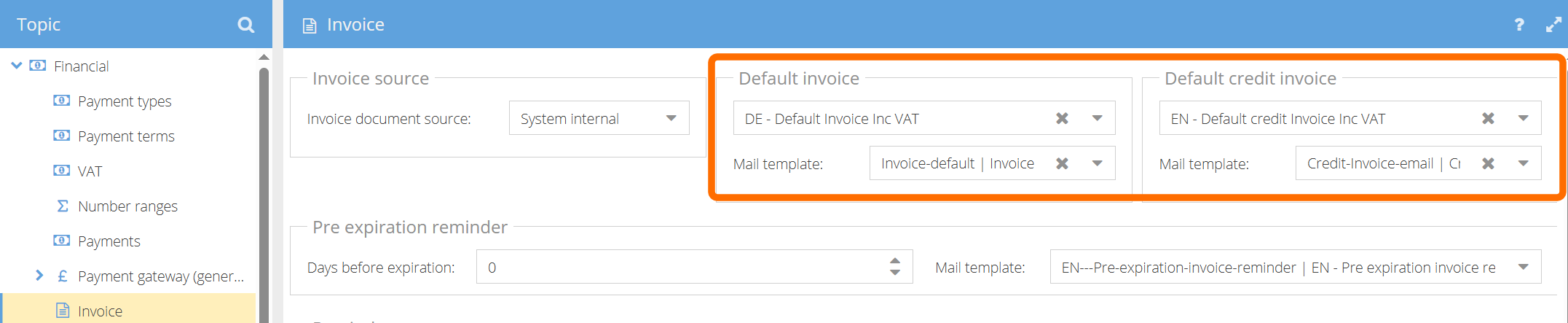
You can set a different invoice template and invoice mail template per customer, see Customer invoice settings. To create or edit templates, see Document templates.
Choose the invoice document source
In Financial > Invoice, the Invoice document source setting defines where the invoice PDF comes from:
- System internal (default) — ShopCtrl generates the PDF from your document template.
- External service — an external system, for example your accounting software, creates the PDF and uploads it to ShopCtrl through the API. The template fields are disabled, and an invoice becomes read-only once its document is uploaded.
Set up invoice numbering
Invoice numbers are assigned from a number range. Credit invoices use the same number range as invoices.
- Open the shop or shop owner settings and go to Financial > Number ranges.
- In the Invoice numbering section, set:
- Numbering at shop level (shop settings only) — select it to give this shop its own number range. Leave it clear to use the shop owner's number range for all shops.
- Invoice nr reset period — Infinite, or Yearly to restart numbering every year
- Invoicecode format — for example
INV{Nr:000000}gives INV000001, INV000002 - Last number — the last number used. The next invoice gets the next number.
- Click Save and close.
For all format options, see Number ranges.
Set the default payment terms
Every invoice needs payment terms. If ShopCtrl finds none, you cannot create invoices.
- Open the shop settings and go to Financial > Payment terms.
- Make sure the payment terms you need exist and are enabled, for example 14 or 30 days.
- Select the Default payment terms for shop.
- Click Save and close.
The shop default is used only when the customer contract, the customer and the payment type have no payment terms. See What happens after an invoice is created.
Set up VAT tariffs
In the shop settings, go to Financial > VAT:
- In Available VAT tariffs, select the VAT tariffs the shop can use and the Default tariff.
- Select Default inc VAT to show all financial information including VAT.
- Click Click here to manage your VAT tariffs to add or change tariffs.
To change the VAT on an existing invoice, see Change the VAT on an invoice.
Credit invoice settings
-
Credit invoice template — set in the Default credit invoice section, see Set the default invoice templates.
-
Credit reasons — define them in the return configuration.
-
State shipping costs on crediting — choose whether the invoiced shipping costs are credited when the complete order is credited (or the last item of the order is returned). If this setting is off, shipping costs are never included in the credit invoice. You can set it in:
- Shop settings > Financial > Invoice > Credit Invoice
- Shop owner settings > Financial > Invoice management
The shop setting takes precedence over the shop owner setting.

To create credit invoices, see Credit invoice.
Customer invoice settings
On the customer details page, in the Invoice section, you can override the shop defaults for one customer: the Invoice email, Reminder email, Invoice mail template and Invoice template. In the Financial section, you can set the customer's Payment terms and a VAT free tariff.
See Set up customers' financial settings.
Other invoice settings
- Invoice statuses — see Add or edit invoice statuses.
- Payment reminders — see Invoice reminders.
- Export to your accounting system — set up in Financial > Invoice export. See Exact Online.
- Create invoices automatically — see Create invoices automatically with triggers.