Purchase order suggestions
An employee needs the permission to view purchase order suggestions for at least one shop to open this page.
The Purchase order suggestions page shows which products you need to reorder and how many. ShopCtrl calculates the quantity from your backorders, your minimum stock levels, the stock you have, and what is already on order. From the same page, you can create a purchase order for a supplier in a few clicks.
To open it, go to Purchasing > Purchase order suggestions.
The page has two parts: the suggested Products on the left, and the Purchase order you are creating on the right.
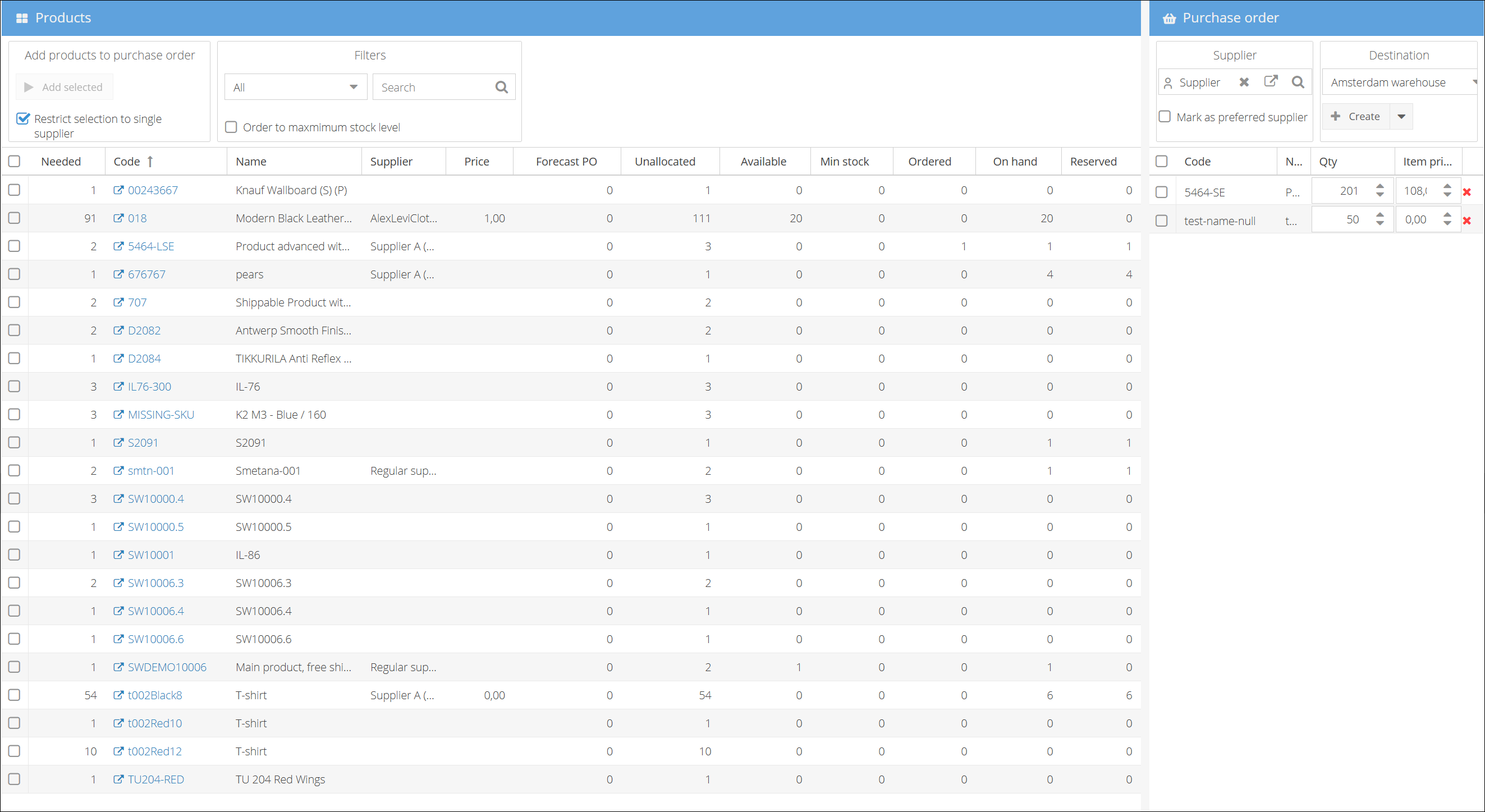
Which products are suggested
A product is suggested when it has Keep stock turned on, is not deleted, and at least one of these applies:
- Backorders - the product is on active orders that could not be fully allocated.
- Low stock - the available stock is below the product's Minimum stock.
A product is not suggested when:
- It is marked as End of life.
- The stock you have and the stock on order already cover the need. See How the needed quantity is calculated.
Which orders count as backorders
An order row only counts when:
- The order's main status has the base status Active.
- The order row's stock status is Not enough stock, Not in stock or Pre allocated.
Order rows that are Awaiting allocation or Deallocated do not count. For example, if you allocate stock only after payment, unpaid orders are not included in the suggestions until they are allocated.
How the needed quantity is calculated
ShopCtrl calculates the Needed quantity for each product:
Needed = Unallocated + Min stock − Ordered − Available
If you check Order to maximum stock level, ShopCtrl uses Max stock instead of Min stock for products that have a maximum stock level.
For example, a product has 200 units on backorder, a minimum stock of 10, 50 units on an open purchase order and 5 units available:
200 + 10 − 50 − 5 = 155 units needed
Columns
| Column | What it shows |
|---|---|
| Needed | The quantity to order, calculated as above. |
| Code / Name | The product. Click the code to open the product. |
| Supplier / Price | The product's supplier with the highest priority, and its purchase price. |
| Forecast PO | Stock on forecast purchase orders. It is shown for information and is not included in Ordered. Expand the row to see the expected delivery dates. |
| Unallocated | The quantity on backordered order rows. |
| Available | On hand minus reserved. |
| Min stock | The minimum stock level set on the product. See Product fulfillment. |
| Ordered | Stock on open regular and back-to-back purchase orders that has not been received yet. |
| On hand | Stock in pick and bulk locations of your private and fulfilment warehouses. |
| Reserved | The part of the stock on hand that is reserved for orders. |
Create a purchase order from suggestions
- Go to Purchasing > Purchase order suggestions.
- (Optional) Filter the products:
- Select All or Preferred supplier.
- Search by product code or name.
- Select the Supplier and the Destination warehouse.
- Select products in the list and click Add selected.
- (Optional) Change the Quantity or Item price of the rows. Quantities are rounded to the product's order unit.
- (Optional) Set the options:
- Order to maximum stock level - order up to Max stock instead of Min stock.
- Restrict selection to single supplier - you can only add products of one supplier to the purchase order, and their purchase prices are filled in.
- Mark as preferred supplier - makes this supplier the preferred supplier for the ordered products.
- Click Create, or click the arrow next to it for more options:
- Create - creates the purchase order.
- Create & show - creates the purchase order and opens it.
- Create & mail - creates the purchase order and opens an email to the supplier with the purchase order document.
After the purchase order is created, the page is cleared so you can create the next one.
Settings that affect suggestions
- Product: Keep stock, Minimum stock, Maximum stock and End of life. See Product fulfillment.
- Product suppliers: the supplier with the highest priority is suggested. Only active suppliers are used.
- Warehouse: the destination warehouse needs a Ship To address.
Troubleshooting
A product is not in the list
Check that:
- The product has Keep stock turned on and is not marked as End of life.
- Its backordered order rows are Not enough stock, Not in stock or Pre allocated, and not Awaiting allocation or Deallocated.
- The orders' main status has the base status Active.
- The needed quantity is above 0. Stock on open purchase orders and available stock reduce it.
- The filter is set to All and the search field is empty.
- The product is not already added to the purchase order on the right.
- If the page was already open, close it and open it again to load the latest data.
The Create button is disabled
Select a Supplier and a Destination warehouse, and add at least one product.
Error messages
| Message | What to do |
|---|---|
| Unable to create a Purchase Order, please specify Bill To information for the Shop Owner. | Fill in the shop owner's Bill To details. |
| The selected Warehouse does not have a ShipTo address specified. | Add a Ship To address to the destination warehouse. |