Hotkeys and Deep Links
We’ve built several shortcuts and deep linking features into the platform to help you navigate faster and collaborate more efficiently. Here is a guide to using them.
Hotkeys
The following shortcuts apply to most, but not all, pages within the platform.
| Shortcut | Action |
|---|---|
| Esc | Closes the current tab. If a dialog window is open, closes the dialog instead. |
Quick Copy Actions
Copying important identifiers is now just a click away. These shortcuts work on all pages.
Copy an Entity ID
| Shortcut | Action | Result |
|---|---|---|
| Shift + Click | Hold Shift and click on a details tab (e.g., a specific order, invoice, or mail) | The ID of the entity is copied instantly to your clipboard. |
Copying IDs from Grids
If you are working with data grids, you can copy single or multiple IDs directly from the ID column:
| Action | Steps | Result |
|---|---|---|
| Copy a single ID | Click directly on the ID cell | Single ID copied to clipboard |
| Copy multiple IDs in sequence | 1. Click on the first ID cell 2. Hold the Shift key3. Click on the last ID cell in the range | Selected IDs copied to clipboard, separated by commas (e.g., 12345, 12346, 12347) |
| Copy multiple non-sequential IDs | 1. Click on the first ID cell 2. Hold Ctrl key3. Click on individual ID cells in any order | Each selected ID is added to the clipboard, separated by commas (e.g., 12345, 12348, 12352) |
Pro Tip: Working with Stock Items
This feature is especially useful when managing stock items:
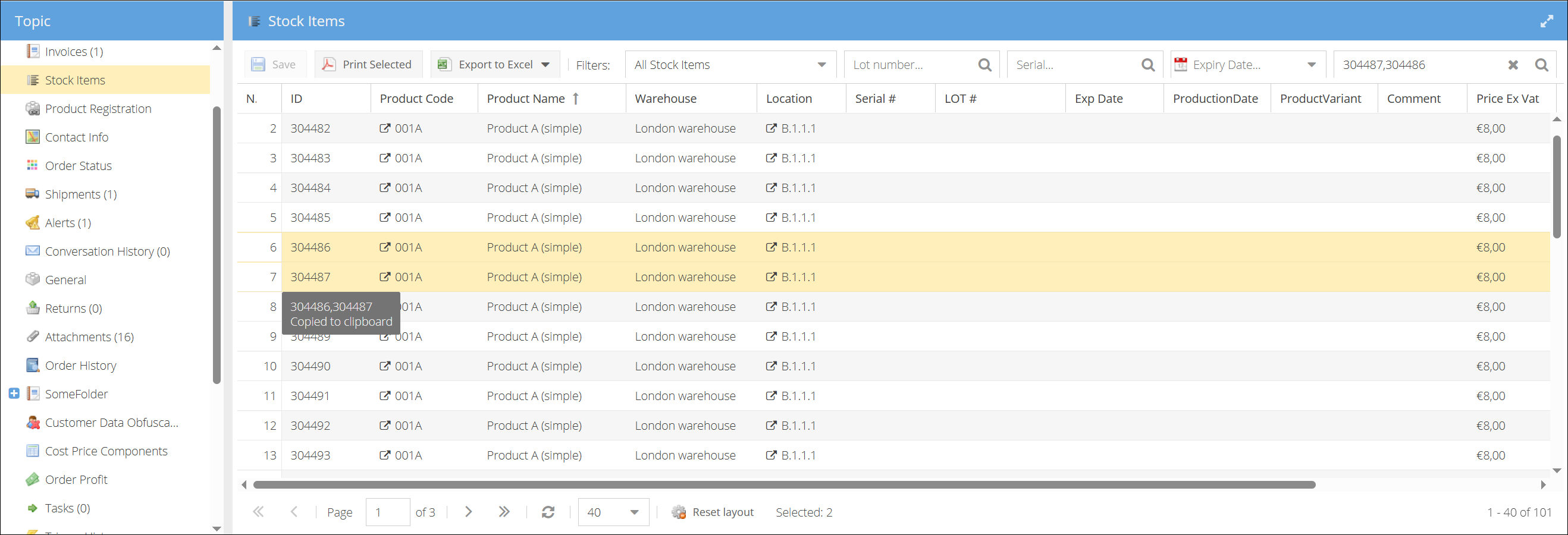
- Navigate to Order > Stock items.
- Click a single ID to copy it, or use the
Shift + Clickmethod to select a range of items. - Paste directly into the search field to filter results (at Product details for ex.).
The stock items search field at Order or Product details accepts multiple values separated by commas. The multi-select copy feature formats the IDs exactly for this purpose.
Deep Links: Share Exact Locations with Colleagues
One of the most powerful features for collaboration is the ability to send a link that opens the platform at a very specific location. This ensures your colleagues see exactly what you see.
Link to a Specific Page
| Shortcut | Action | Result |
|---|---|---|
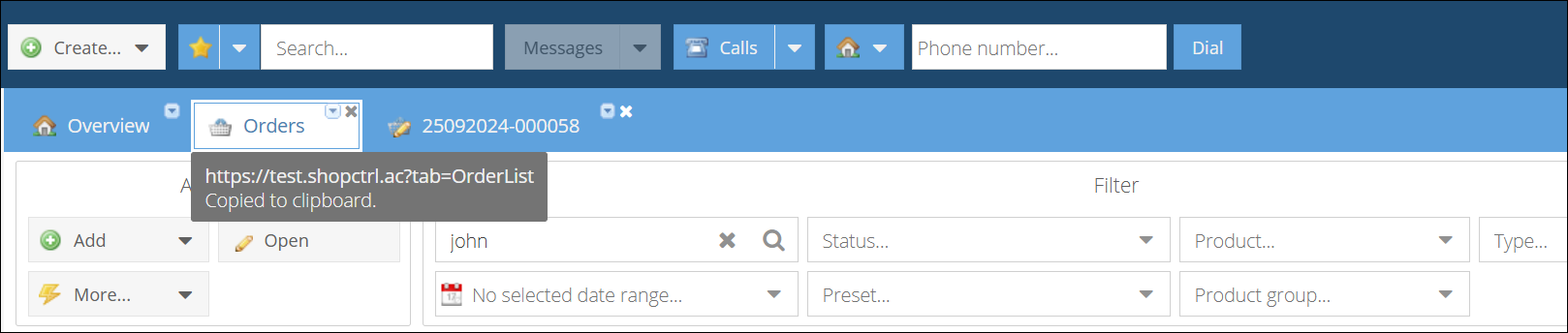
| Ctrl + Click on tab name | Open the page you want to share (like an order or product) | Direct link copied to clipboard |
Example links:
Link to order list: https://{your-shopctrl-domain}?tab=OrderList
Link to specific order: https://{your-shopctrl-domain}?tab=Order|4923
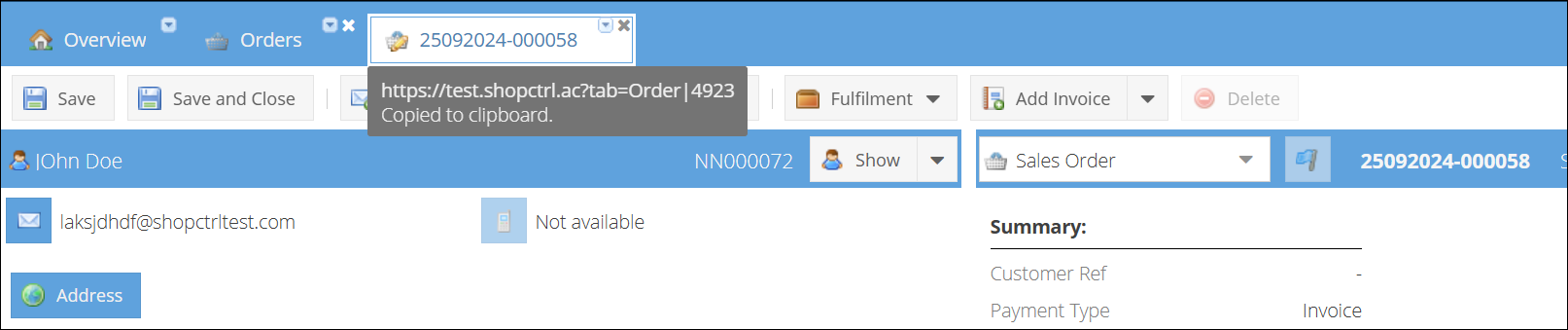
When your colleague opens this link, it will launch the platform in a new window and navigate directly to that specific order.
Link to a Specific Topic on a Detail Page
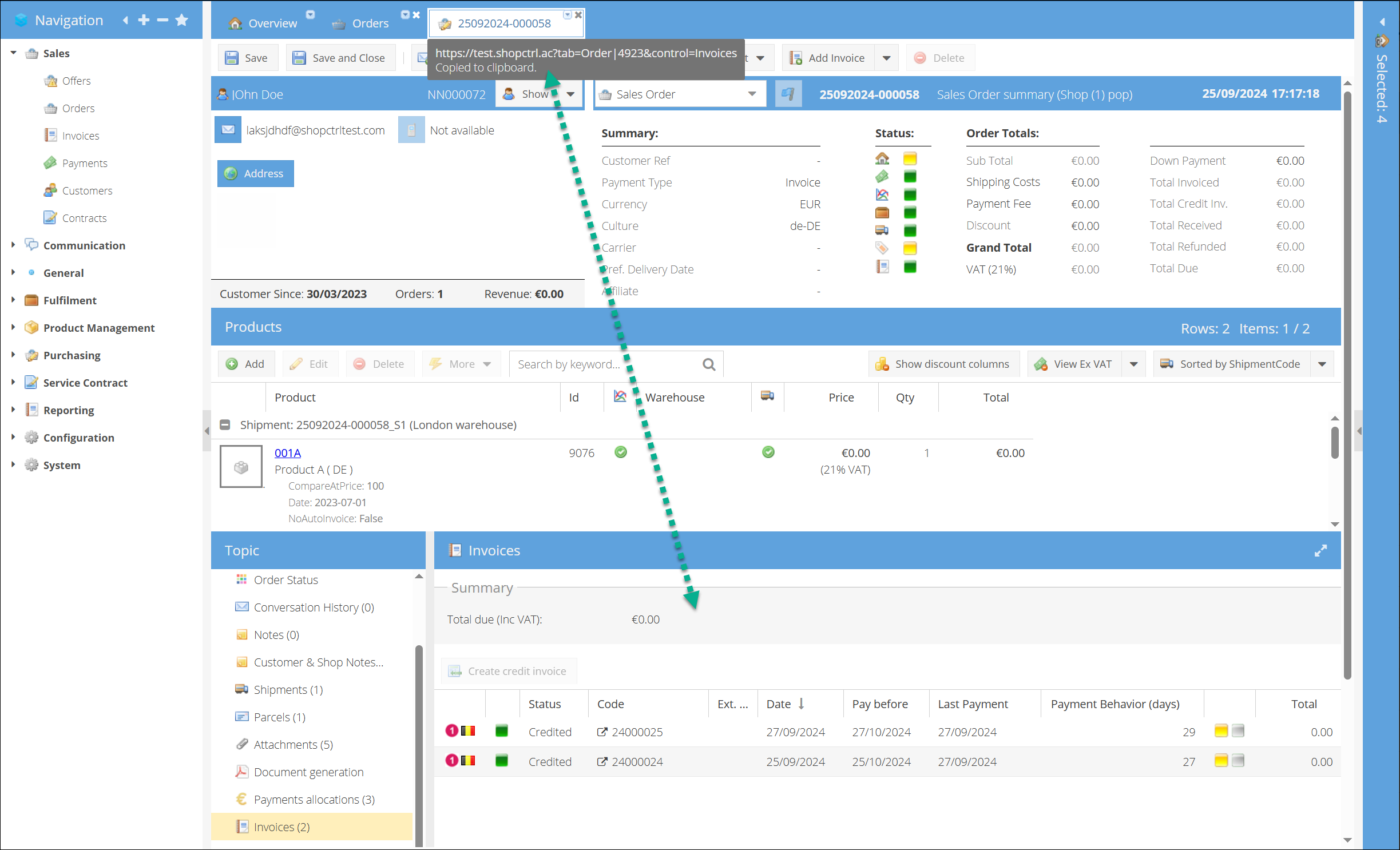
You can take it a step further by creating a link that opens a specific detail page and a specific sub-topic (like the Invoices topic of an order).
| Shortcut | Action | Result |
|---|---|---|
| Ctrl + Shift + Click on tab name | Open the detail page (e.g., an Order) | Deep link copied to clipboard |
Example link:
Opens order 10983 and Invoices topic
https://{your-shopctrl-domain}?tab=Order|10983&control=Invoices